

Some journals and databases license their content on terms that don’t permit AI/ML processing — even when you’re otherwise entitled to read, print, or share the material. Usage Rights is where your organization records what those terms allow, so that Nested Knowledge’s AI tools only run where you’re licensed to run them.
Usage Rights covers two separate tiers of content:
- Abstract usage rights, tracked per search engine (PubMed, Embase, Cochrane Library, and so on). Only AI/ML Use is tracked at this tier.
- Full Text usage rights, tracked per journal (by ISSN). Four rights are tracked here: Print, Digital Use, AI/ML Use, and Reactive Sharing.
While Abstract usage rights are populated manually, Full Text usage rights can be populated two ways:
- Automatically, from a connected rights-data source. CCC RightFind is currently the only such source, and it covers Full Text only. See CCC RightFind to connect it.
- Manually, by an admin — useful when you are managing usage rights from an external database.
Note: A RightFind integration isn’t necessary to use Usage Rights.
Usage Rights is configured for the whole organization by an admin. It isn’t a per-nest or per-study setting — see View & Filter by Usage Rights for how it shows up downstream.
Configure Usage Rights #
Set Abstract usage rights #
Abstract usage rights control whether AI tools can process the abstracts your automatic searches and imports pull from a given search engine. Where duplicates are identified, Abstract usage rights only apply to the original database the record was imported from.
- Open Usage Rights. In Organization Management, select Usage Rights, then select the Abstract tab.
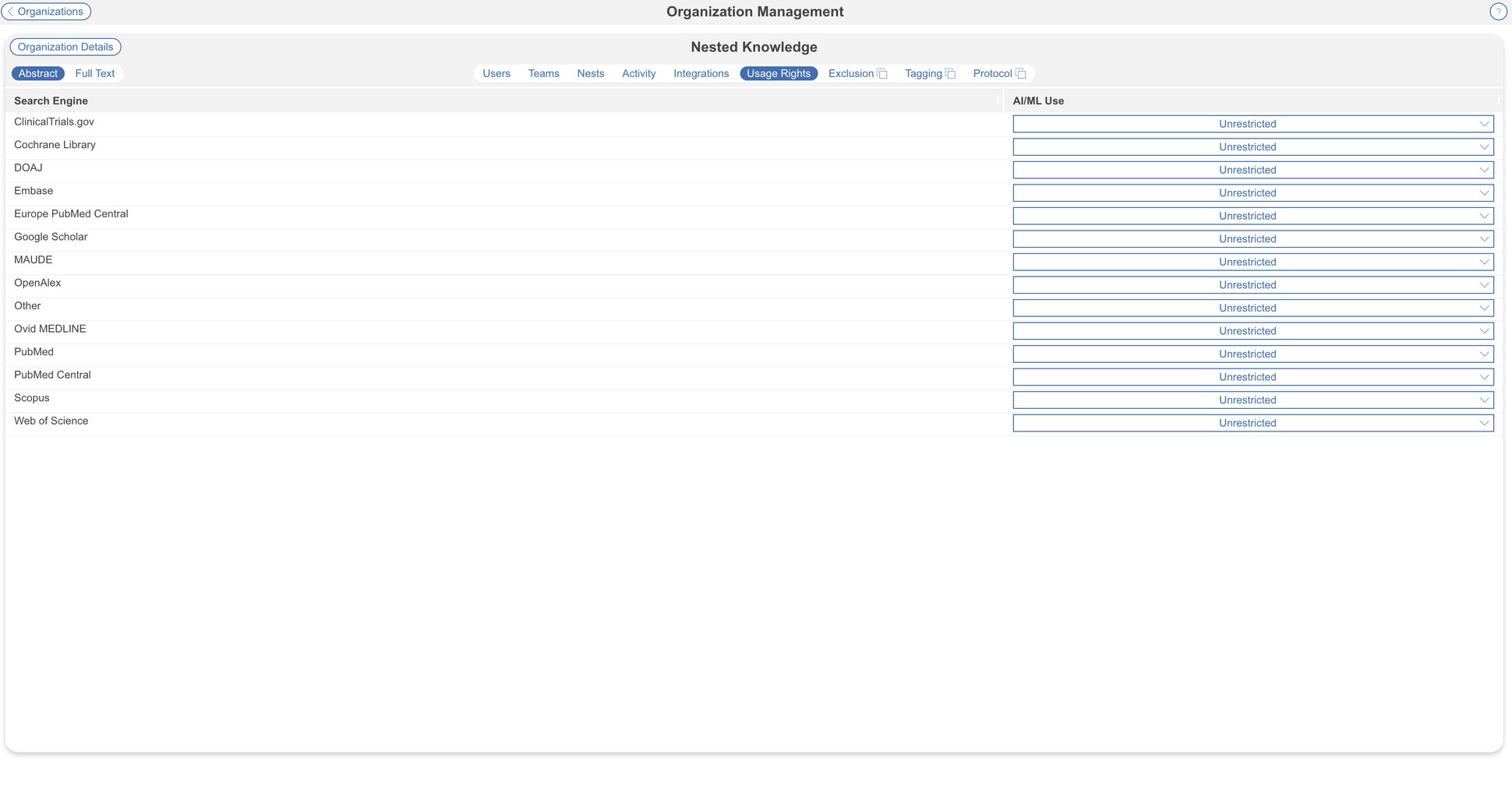
2. Set AI/ML Use per search engine
For each search engine, set AI/ML Use to:
- Unrestricted — no known restriction; AI tools can process abstracts from this source.
- Grant — this source’s terms explicitly permit AI/ML processing, and it’s been confirmed.
- Deny — this source’s terms don’t permit AI/ML processing.
Search engines default to Unrestricted.
Set Full Text usage rights #
Full text usage rights are tracked per journal (ISSN), and — unlike Abstract usage rights — they only take effect once you turn on enforcement. They are unrestricted by default.
- Open Usage Rights. In Organization Management, select Usage Rights, then select the Full Text tab.
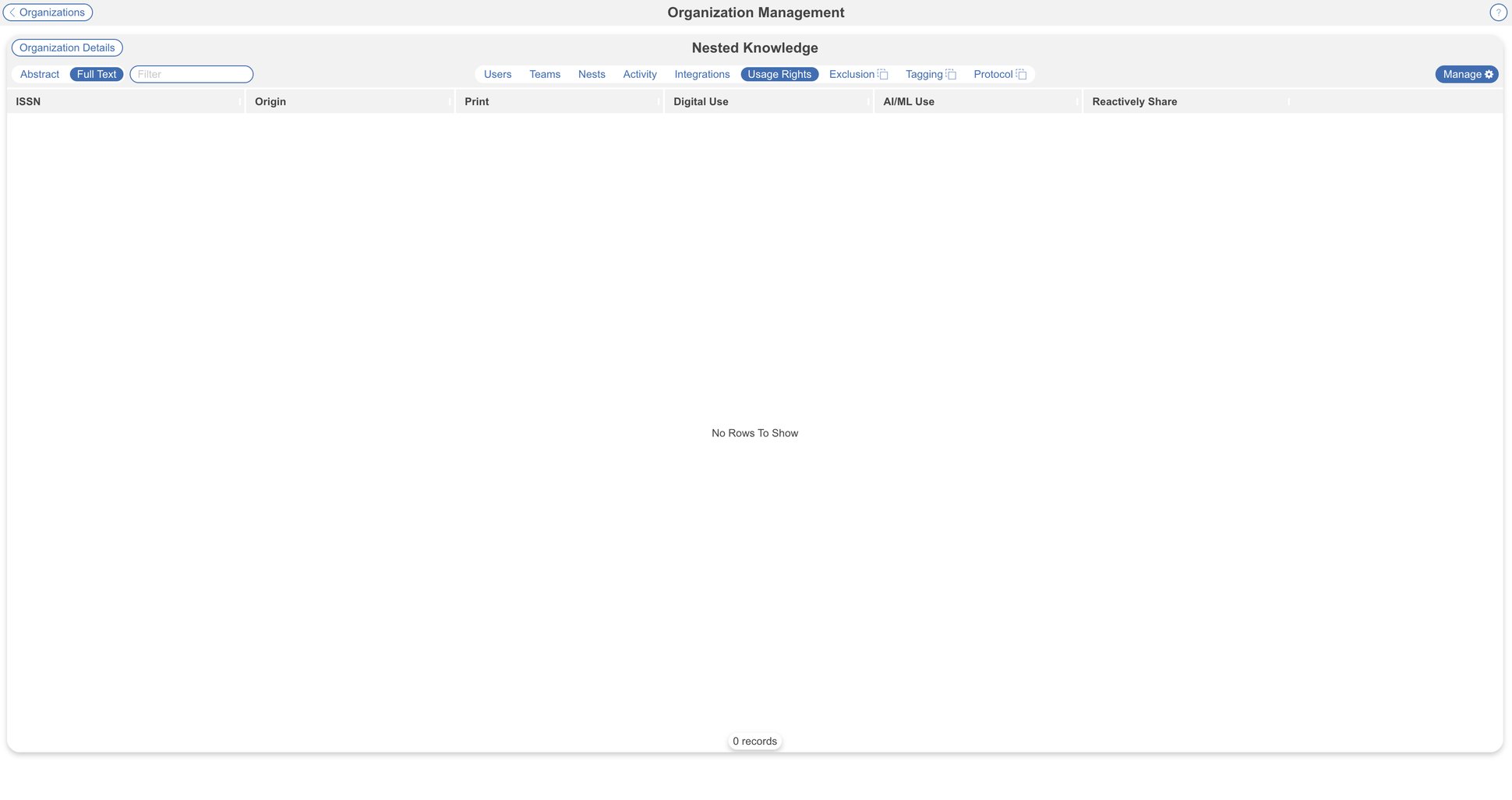
2. Review or edit rights by ISSN
Each row shows a journal’s ISSN, its Origin — RightFind if the data came from your connected integration, Manual if an admin entered it — and its Print, Digital Use, AI/ML Use, and Reactively Share values, each Grant, Deny, or Unknown.
Use Filter to find a specific ISSN.
3. Turn on enforcement
The default setting for Full Text Usage Rights is Off. To turn on, select Manage, then turn on Full Text Usage Rights.
This toggle is off by default, and while it’s off, full text is unrestricted across your nests regardless of what’s in the table above.
Turning it on restricts full text according to the ISSNs listed — and it also restricts any record whose ISSN isn’t in the table. Before turning this on, make sure every journal your reviews rely on is represented, or AI tools may be unexpectedly blocked from processing full texts you’re actually licensed to use. Any missing ISSN is displayed as Unknown.
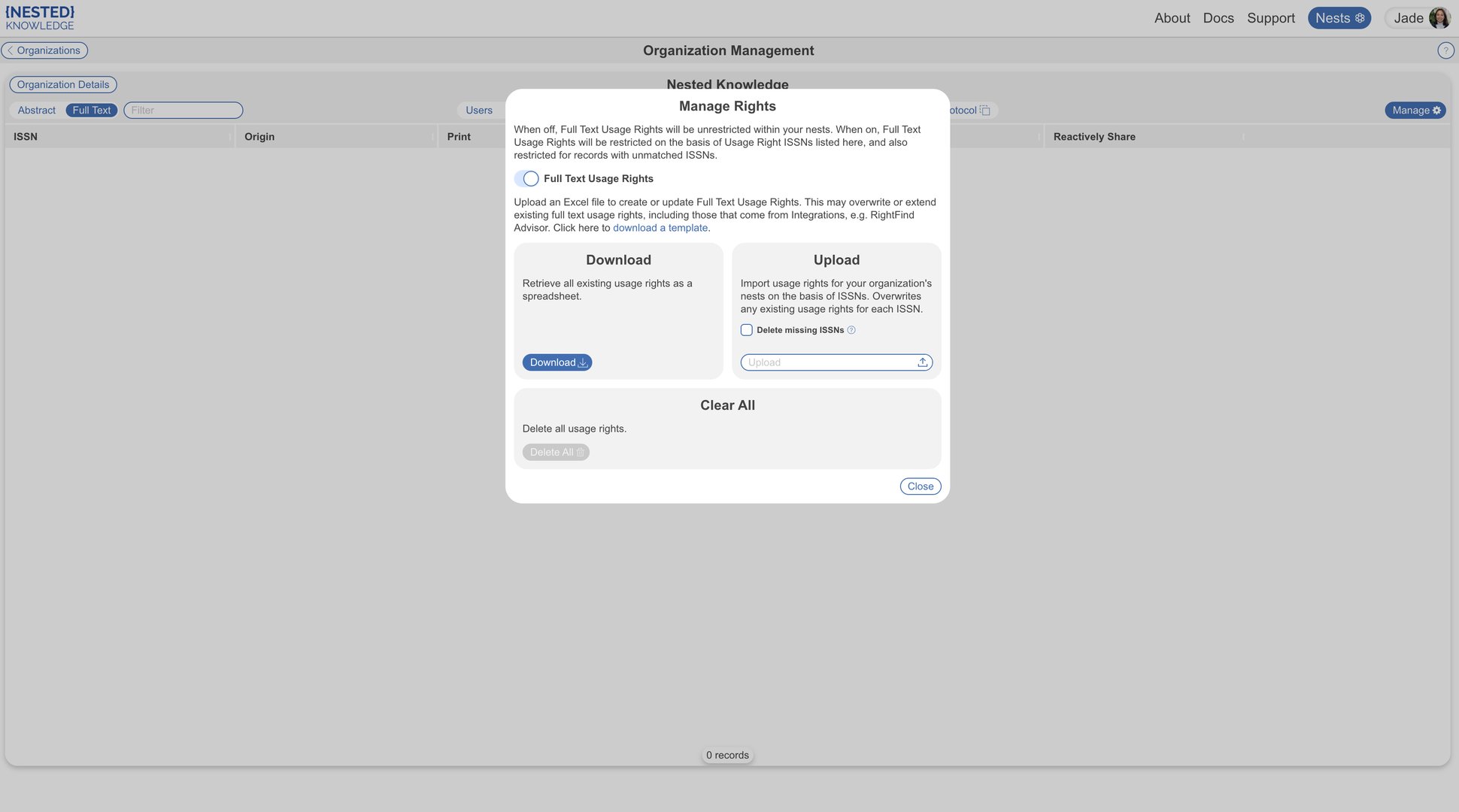
4. Download existing rights (optional)
In the Download panel, select Download to export every existing usage right — from RightFind and Manual entry alike — as a spreadsheet in the same format as the upload template. Useful as a starting point when you’re editing rights for ISSNs you’ve already set up.
5. Edit and upload rights
If you’re starting fresh, select download a template for a blank spreadsheet with the required columns: ISSN, Origin, Print, Digital Use, AI/ML Use, Reactively Share. Fill in one row per journal — Print, Digital Use, AI/ML Use, and Reactively Share each take Grant, Deny, or Unknown.
In the Upload panel, select Upload and choose your file.
Uploading overwrites existing rights for any ISSN in your file — including rights that came from RightFind.
Check Delete missing ISSNs to also delete any ISSN currently in your organization’s usage rights that isn’t in the uploaded file. Leave it unchecked to only add or update the ISSNs you’ve included, leaving everything else as-is.
6. Clear all rights (optional)
To remove every Full Text usage right your organization has recorded — RightFind and Manual alike — select Delete All in the Clear All panel. This is irreversible.
View & Filter by Usage Rights #
On an individual study
Select the R icon in a study’s header to see its Usage Rights, alongside Abstract, Full Text, and Supplements. This view is read-only — it reflects your organization’s Usage Rights configuration for that study’s search engine and ISSN, and can’t be changed from the study itself.
In Study Inspector
Use the Usage Rights filter to find records by a right and status — for example, filter to AI/ML Use: Grant to isolate records you’re licensed to process before running an AI tool such as Adaptive Smart Tags. Use Usage Rights Ineligibility to filter directly to records that aren’t eligible for a selected use. See Filters Available in Study Inspector.
FAQs
Can I set usage rights for a single study, or a single nest?
No. Usage Rights is configured once, for the whole organization, by an admin. Every nest the organization owns inherits the same configuration.
Do I need CCC RightFind to use Usage Rights?
No. RightFind is one way to populate Full Text usage rights automatically, but Manual entry works on its own — at both the Abstract and Full Text tiers — whether or not you have a RightFind subscription.
What happens to a journal that isn’t in my Full Text usage rights table?
If Full Text Usage Rights enforcement is off, nothing — full text remains unrestricted. If it’s on, any record whose ISSN isn’t listed is treated as restricted, the same as an explicit Deny.