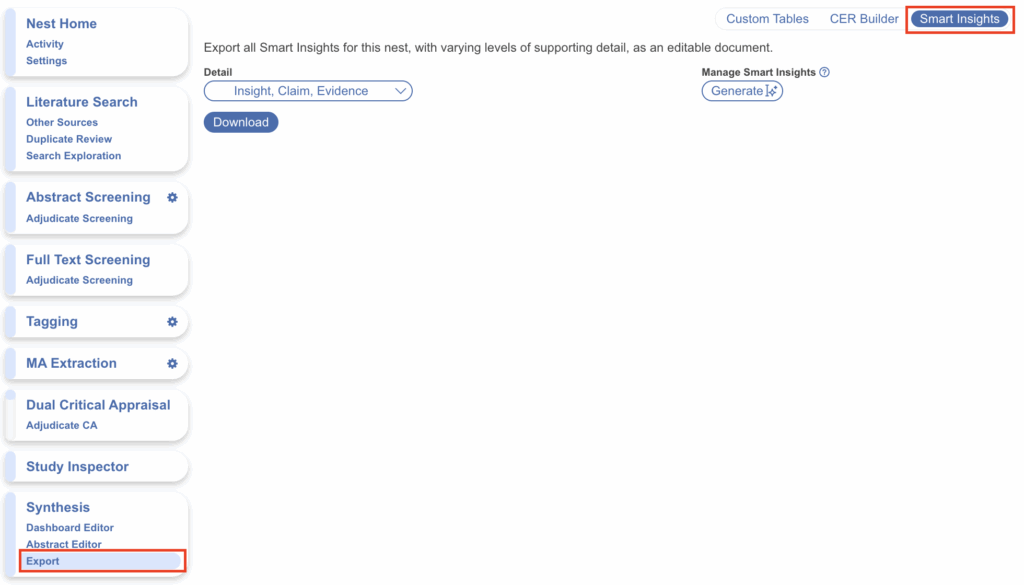

Smart Insights is Nested Knowledge’s AI-assisted writing feature: it generates evidence-backed written summaries directly from the tags applied in your nest. Every insight is fully traceable by design, structured as an Insight (the summary), the Claims within it, and the Evidence (cited studies with highlighted excerpts) supporting each claim, so you can review, verify, and refine the output rather than take it on trust. Unlike standalone AI tools, Smart Insights works only with the evidence in your nest and preserves the link between every sentence and its source data, supporting accurate, reproducible, and audit-ready outputs.
Use Smart Insights to move efficiently from extraction to interpretation: summarizing findings across studies, synthesizing extracted outcomes or study characteristics, or drafting narrative sections for reports, dossiers, or internal reviews.
What Smart Insights Can Draw On #
Smart Insights are generated from Apply question tags applied across multiple records — including tag tables. Both entire Index Tables and individual sub tables within them can be summarized. Select question types (Single or Multiple Select) are not supported; see question types for the distinction. So before generating, ensure your hierarchy contains Apply question tags, with descriptions, that have been applied to at least two studies — tags falling short of these requirements are excluded from generation, and the generation modal tells you which and why (see below).
Where to Generate Smart Insights #
Smart Insights can be generated in two places, and the generation modal is identical in both. The difference is what happens to the insights afterwards:
- Export page (under Synthesis, click Export, then the Smart Insights tab): generate and download all insights to a Word document. Your only choice at download is the level of detail — Insight, Claim, and/or Evidence.
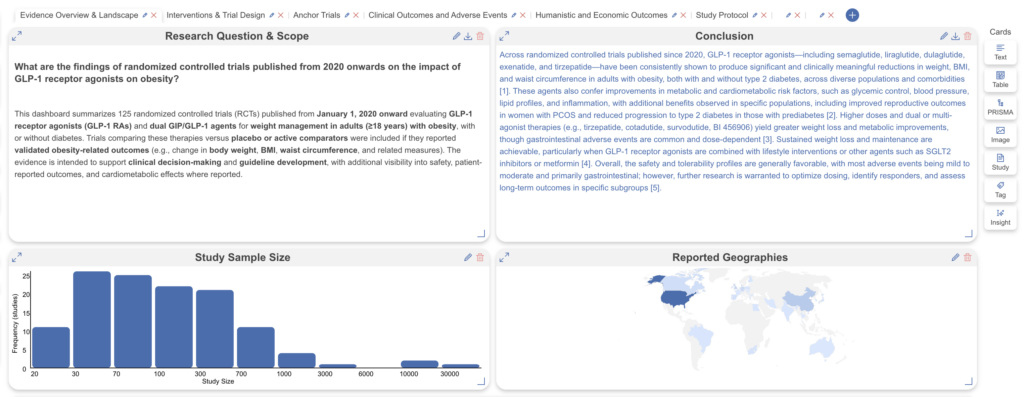
- Dashboard Editor (Insight cards): generate and display insights as interactive cards that live on your Dashboard and the shareable Synthesis page. Insights can be downloaded from cards, but only one at a time — for bulk download, use the Export page.
Generating Smart Insights #
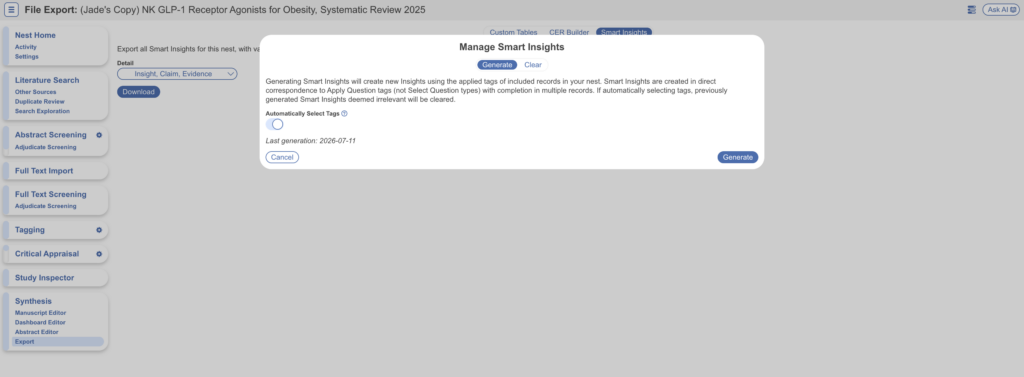
If starting from the Export page, select Smart Insights tab then under Manage Smart Insights: Generate.
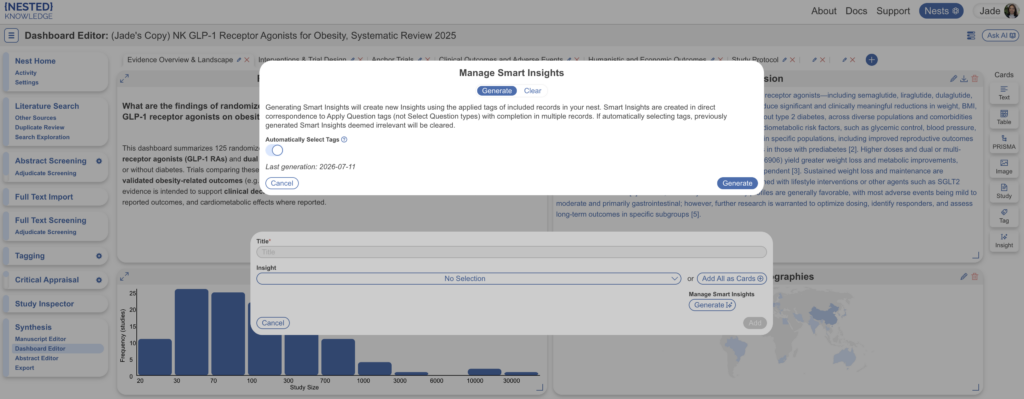
If starting from the Dashboard Editor page, select Insight under cards and under Manage Smart Insights: Generate.
Selecting Tags #
The Automatically Select Tags toggle determines how tags are chosen. If enabled, Smart Insights are generated for the tags automatically selected as most relevant to your research question; note that any previously generated Smart Insights deemed irrelevant will be cleared. If disabled, you select the tags for generation yourself.
When selecting manually, the modal lists each eligible tag with its type (Text, Sub Table, or Index Table), the number of records it’s applied to, and when an insight was last generated for it. Check Generate? for each tag you want summarized. For tag tables, you can select the entire Index Table and/or individual sub tables within it — for example, generating one insight across all Safety sub tables, another for GI Adverse Events specifically, or both.
Beneath the eligible tags, the modal also lists Excluded Tags: tags that cannot be run through Smart Insights, each with the reason — for example, applied to fewer than 2 studies, or an Apply question without a description. (Select question types are filtered out before this list.) If a tag you expected is missing from the selection list, check here first; the fix is in your tag hierarchy configuration, not the modal.
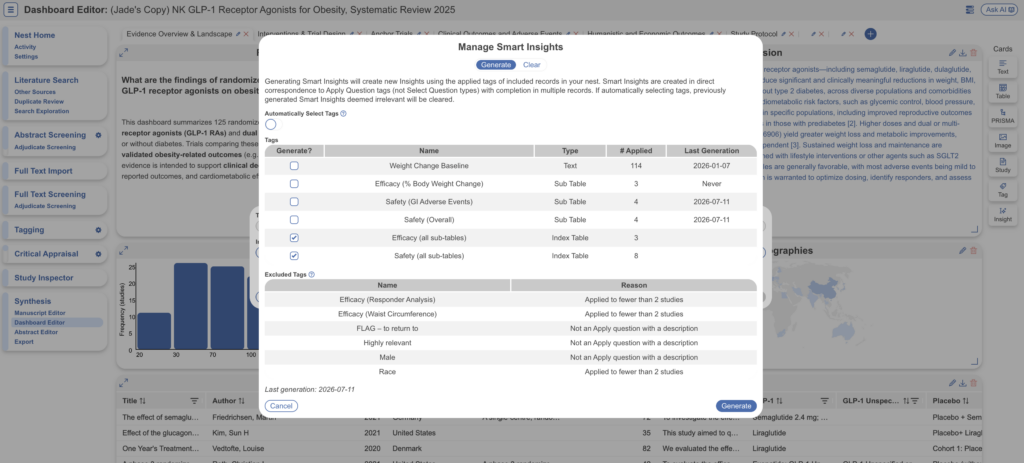
When your tags are selected, click Generate. Generation runs in the background, so you can click out and check progress via Background Jobs (the three horizontal line icon in the top right).
Clearing Smart Insights #
The Clear tab removes generated insights from your nest. Take care here: Smart Insights may be removed from your nest permanently, and any Dashboard cards corresponding to cleared Smart Insights will be left in an invalid state.
Displaying Insights on the Dashboard #
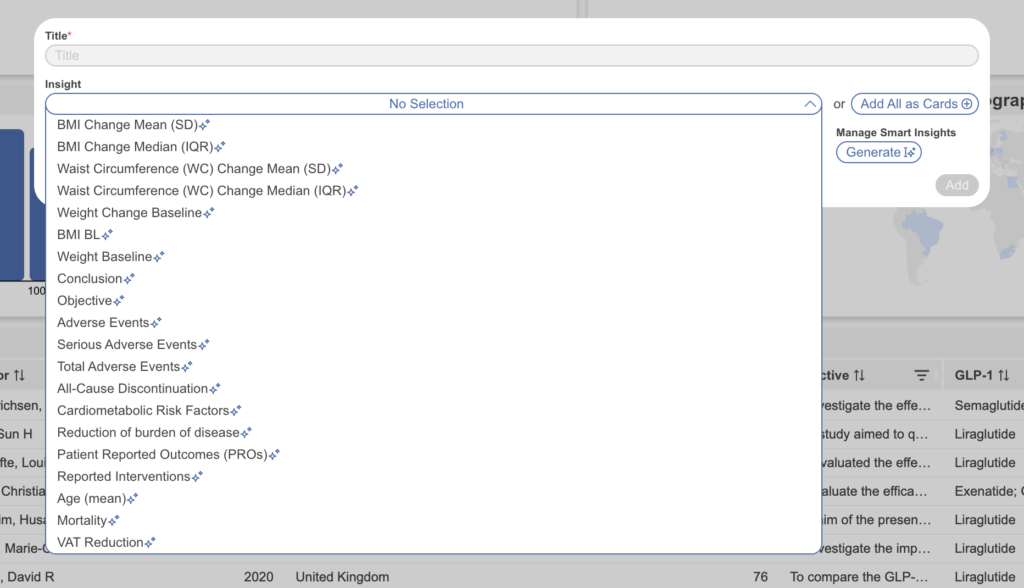
Once generation is complete, select the Insight card again. This time the drop-down lists all generated insights: add them one by one, or select Add All as Cards to display every insight as its own card on the Dashboard.
The Interactive Insight Card #
Minimized, an Insight card displays only the Insight (the summary). Select the expand arrow to reveal the numbered Claims beneath it; select a claim to open its associated studies, and select a study to view the supporting evidence. This is the traceability chain in action — every claim can be walked back to its source excerpt without leaving the card.
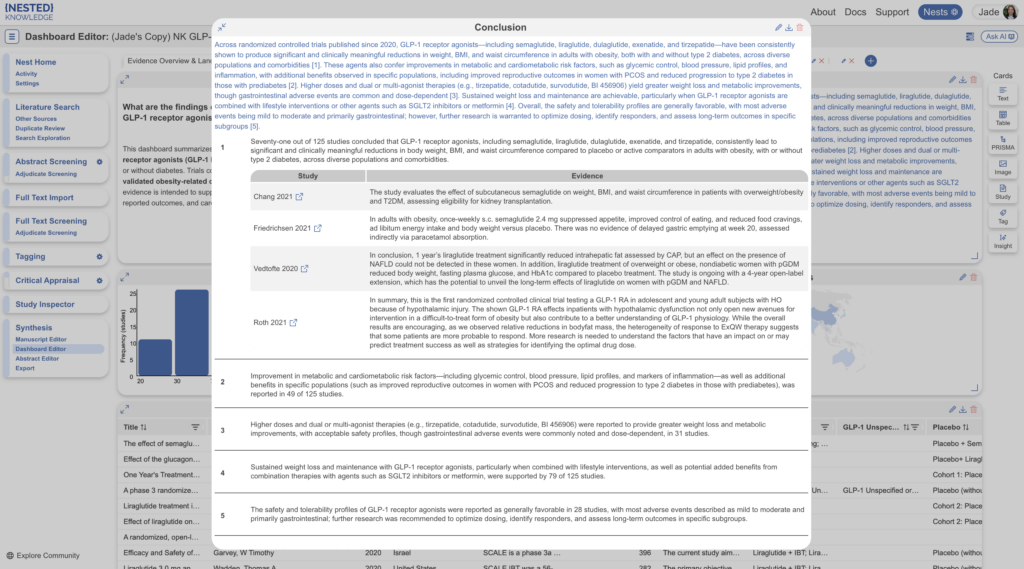
To download an individual insight from its card, select the down arrow in the top right corner.
Downloading Insights from the Export Page #
On the Export page’s Smart Insights tab, all generated insights are downloaded together — your choice is how much detail to include. Use the drop-down to select any combination of:
- Insight — the summary
- Claim — the individual claims within each summary
- Evidence — the study citations supporting each claim
Then click Download to export a Word document with the selected level of detail.