
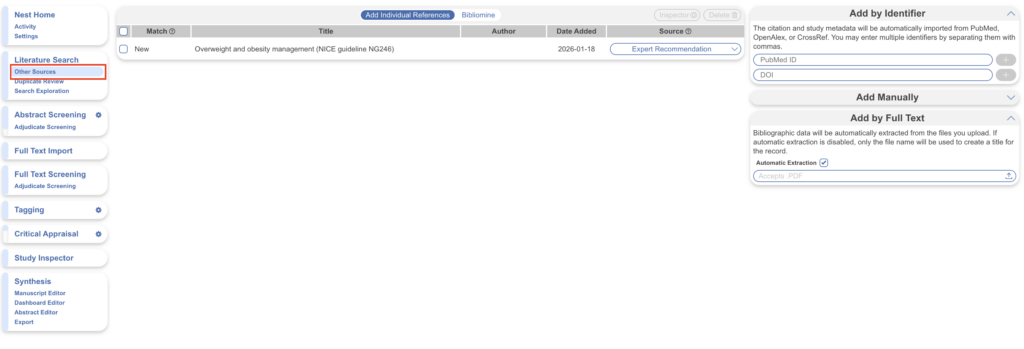
Not every relevant study is returned by a database search. Expert recommendations, studies found through citation searching, clinical trial records, and grey literature all enter a review outside of your formal search strategy — and for PRISMA reporting, they must be tracked as such. The Other Sources page is where these records enter your nest: each addition is logged with its own source origin so it flows through screening and all subsequent steps just like any searched record, while remaining correctly attributed in your auto-generated PRISMA diagram.
To access it, select Other Sources from the Nest menu.
There are three ways to add records, plus Bibliomine for mining an existing document’s reference list:
- By DOI or PMID — recommended wherever the study is indexed, as the bibliographic data is retrieved automatically and guaranteed accurate.
- Manually — for sources with no identifier, such as clinical trial records or news articles.
- By Full Text — batch-upload PDFs and let the platform create records from them.
1. Add by DOI or PMID #
This is the recommended route because the record’s bibliographic data is pulled directly from the identifier, rather than typed by hand.
In a separate tab, look up the study and copy its DOI or PMID. Return to Nested Knowledge, paste the identifier into the field, and click the plus sign. To add several studies at once, list their DOIs or PMIDs separated by commas. Each reference appears at the top of the page once added.
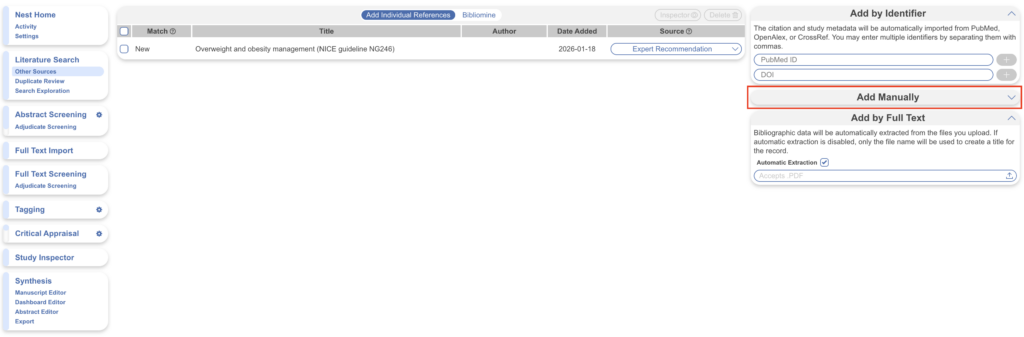
2. Add Manually #
For clinical trials, news articles, and other sources that lack a DOI or PMID, you can enter the record’s information yourself. The Add Manually tab is closed by default — click it to expand the entry form.
A manual record requires a title, at least one author, and a link; remaining fields are optional.
3. Add by Full Text #
If your expert additions exist as PDFs, upload them in bulk under Add by Full Text — up to 2GB total per upload. Note this is separate from uploading full texts to existing records; records added here are new to the nest.
By default, Automatic Extraction is on: bibliographic data is stripped from each PDF and entered into the new record. Uncheck it if you’d rather the record be created from the file name alone. Extraction can take up to 10 minutes; once complete, the new records are listed alongside your other individual references.
Managing Added Records #
Records added on this page can be selected from the list for two actions, using the buttons in the top right:
- Inspector opens the selected records in Study Inspector, where you can review and edit their details.
- Delete removes the selected records from the nest — for example, if a record was added in error or duplicates an existing study.

Rename the Source Reported in PRISMA #
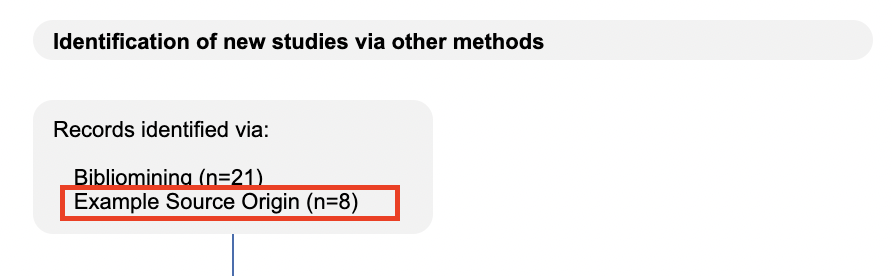
By default, every record added on this page is reported as an “Expert Recommendation” in the auto-generated PRISMA diagram. If a record came from elsewhere — a trial registry, citation searching, a regulatory database — select the drop-down for that source and type an alternative source origin.

The name you assign carries through to the PRISMA display:
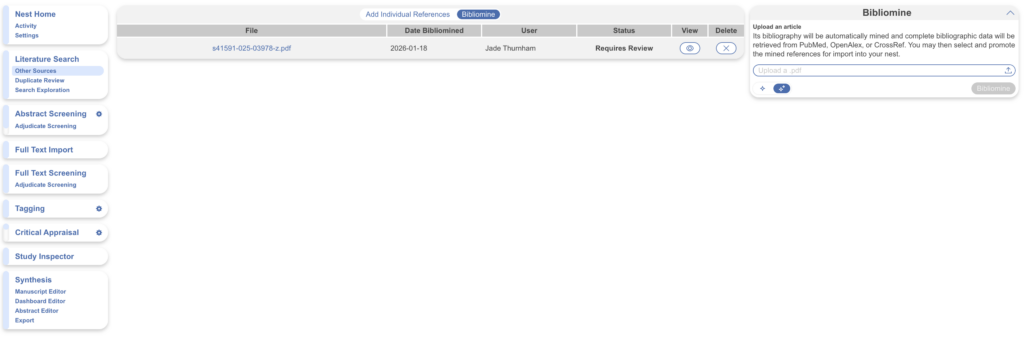
Bibliomine #
If you have a review article or similar document whose reference list you want to import wholesale, toggle Bibliomine to upload the PDF and mine its citations, rather than adding each reference individually. See the Bibliomine page for full instructions.