

The Export page, found under Synthesis, is the home for one-time exports of your included studies: files you generate, download, and take elsewhere, rather than outputs that live on in the nest. From this page you can build and download a Custom Table, export CER-ready search and screening documentation, and generate Smart Insights as a Word document.
Before building here, confirm this is the right export route for your goal:
- Custom Table Export (this page’s builder): a table of included studies with rows, filters, and columns you define. Best for one-time or internal exports you don’t wish to display on Synthesis. See Custom Table Export for the full build walkthrough.
- Dashboard Editor: the same Table Builder, but the resulting table lives in your Dashboard, updates as the nest changes, and displays on the shareable Synthesis page. Use this when the table should remain a living output rather than a download.
- Download from Inspector: bulk contents across all studies in the nest — study metadata (CSV or RIS), screening decisions, tags and tag contents, meta-analytical extracted data, critical appraisal, and all full text PDFs. This is also where Export All Data and RIS file export live.
Custom Table Export #
Custom Tables let you choose the table type (rows as studies, study arms, or interventions), filter to a subset of included studies, and define exactly which columns are presented. The builder opens by default when you land on the Export page; build your table, optionally save it, and click Download.
The full walkthrough — table types, filters, tag columns and their Contents/Children settings, tag table joins, saving, and advanced download settings — now lives on its own page: Custom Table Export.
CER-specific Exports #
Clinical Evaluation Report submissions under EU MDR 2.7.1 Rev 4 require documented evidence of how literature was identified and appraised. The CER Builder exports that documentation directly from your nest’s Search and Screening activities, formatted for inclusion in a CER submission.
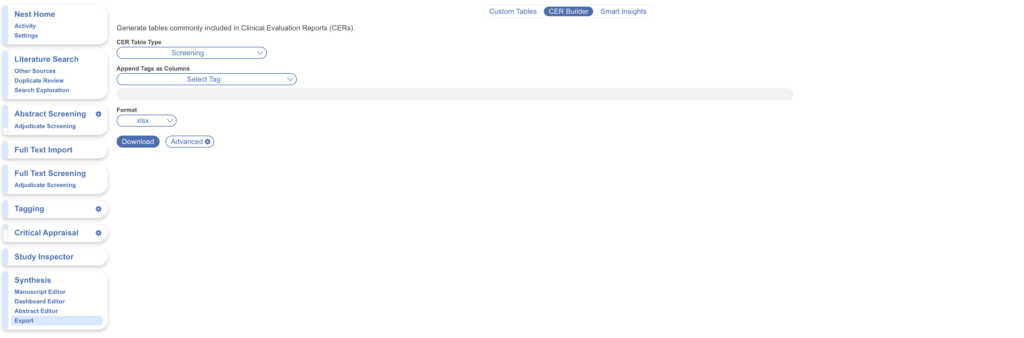
To access it, select Export from the AutoLit menu, then toggle to CER Builder.
Literature Search Export #
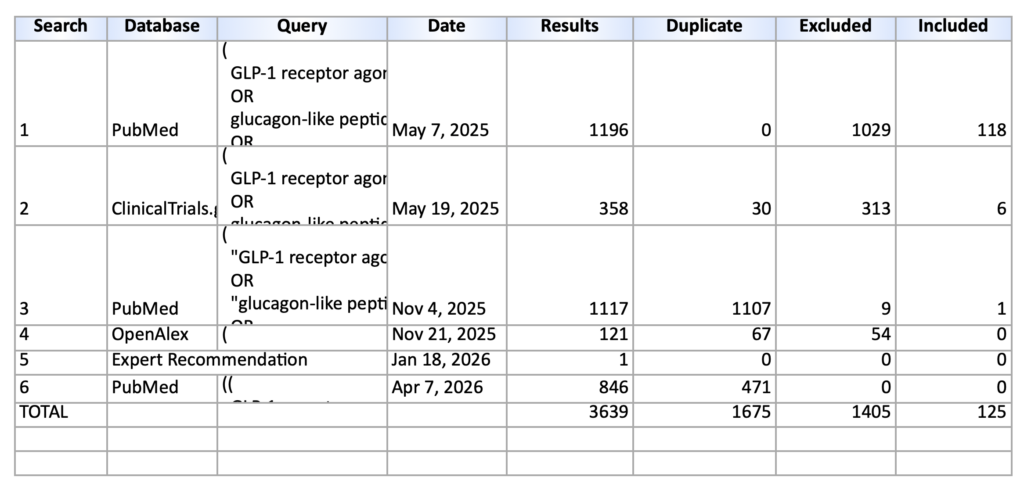
This export documents your search strategy: the search engines used, the specific queries run, the total records returned by each, duplicates found, and the number included and excluded from each search, alongside any studies added individually.
Select Literature Search from the drop-down, choose .docx or .xlsx, and click Download.
Searches are listed chronologically by when they were first run in your nest. The duplicate column reports, for each search, the number of records that duplicated studies already in the nest — that is, studies returned by earlier searches.
Screening Export #
This export documents your screening record: every study screened in the nest, with full citation information, links to full texts, Screening status, and (where excluded) the Exclusion Reason. You can also include tags as columns.
Select Screening from the drop-down, choose .docx or .xlsx, and click Download.
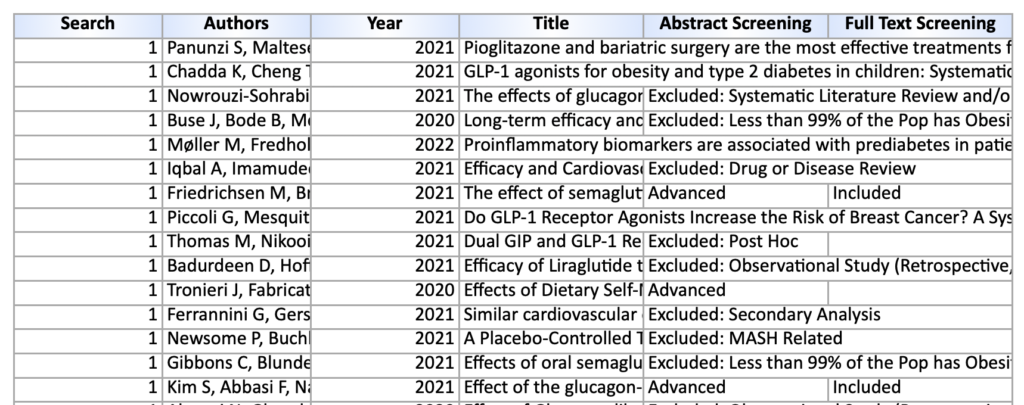
By default, the Screening table separates citation information into Authors, Title, and Year columns. To consolidate these into a single Reference column, open Advanced settings and check Consolidate citation columns before downloading.
Smart Insights #
From the Export page you can also generate and download Smart Insights: AI-generated summaries of the key extracted data in your nest, structured as claims with cited supporting studies, exported to a Word document. See Smart Insights for instructions.