

As you finish up the Title/Abstract Screening stage, you may wish to upload pdfs in bulk to prepare for the Full Text Screening stage. This can be done for both open source publications, proprietary full text pdfs and ClinicalTrials.gov reports. To do this, navigate to the Full Text Import menu tab.
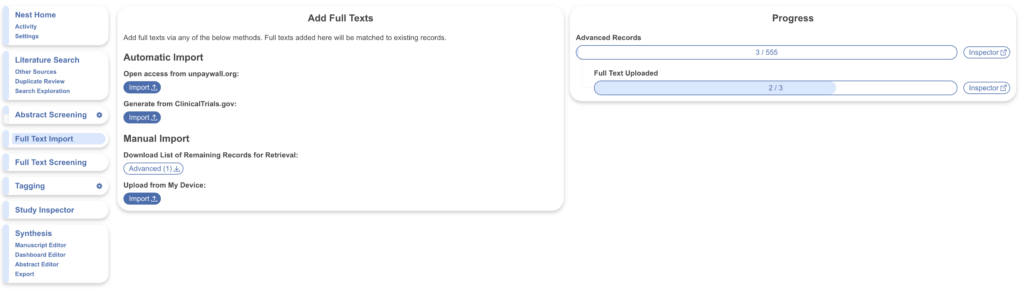
Full texts added here are matched automatically to their existing records, so there’s no need to link them by hand.
Automatic Import gathers full texts for you. Under Open access from unpaywall.org, select Import to pull freely available open-access PDFs across your records in a single step. Under Generate from ClinicalTrials.gov, select Import to generate full-text reports for any registered trials in your nest.
Manual Import covers everything the automatic methods can’t reach — chiefly paywalled or proprietary PDFs. Start with Download List of Remaining Records for Retrieval to export a list of the records still missing a full text, ready to hand to your library or retrieve through institutional access. Once you have the PDFs, use Upload from My Device → Import to add them in bulk, again matched to their records automatically.
The Progress panel on the right tracks how many records have advanced to the full-text stage and, of those, how many now have a full text uploaded. The Inspector shortcuts open each set directly in Study Inspector, so you can see at a glance what’s still outstanding.
Using Study Inspector to Bulk Import Texts
Full Text Import is now consolidated in its own module, but the previous method of import is still viable.
Bulk Import Full Texts: Open Source
- Navigate to Study Inspector and filter to the studies for Full Text Upload
- e.g. Typically Abstract Screening → Advanced is used to view studies entering the Full Text Screening queue
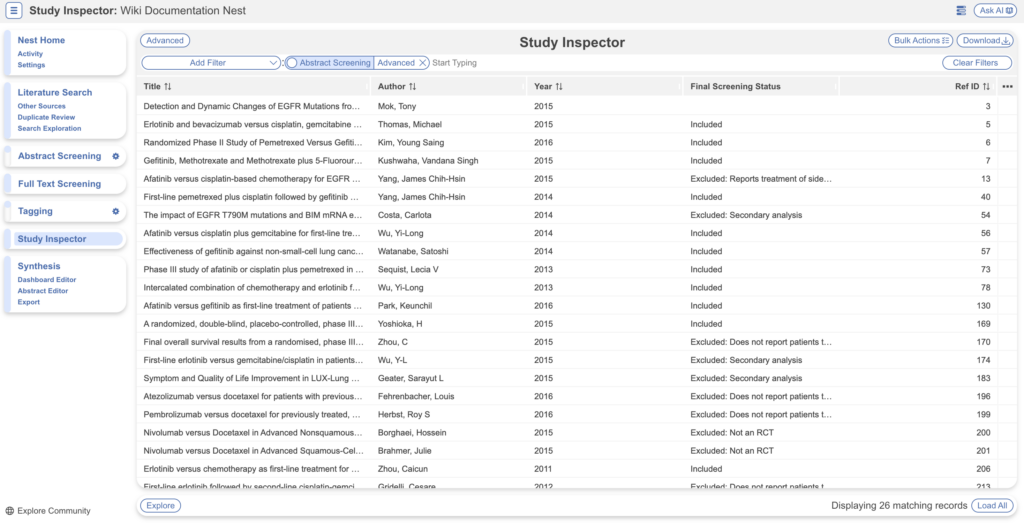
- e.g. Typically Abstract Screening → Advanced is used to view studies entering the Full Text Screening queue
- The total studies for open source upload must be <=500 at a time
- Total filtered studies is given at the bottom right of the page
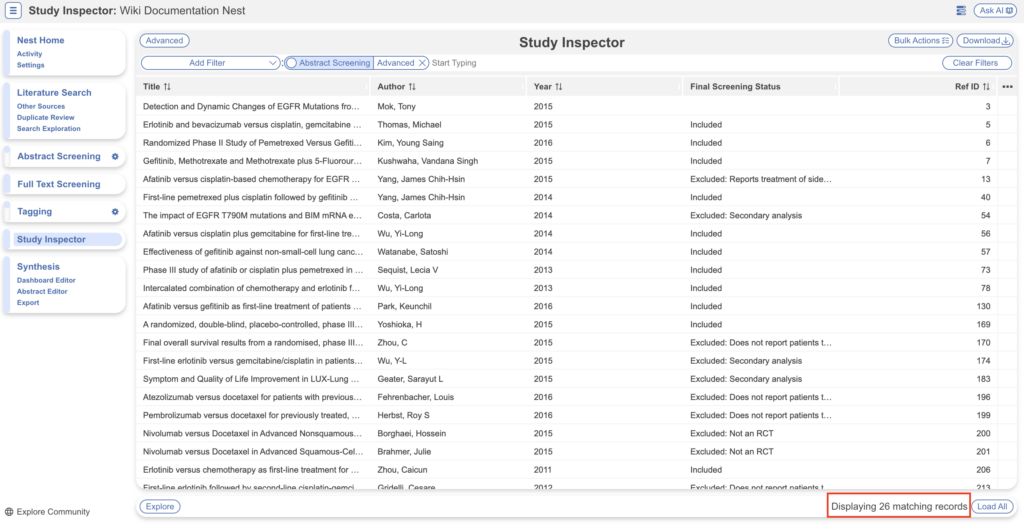
- Total filtered studies is given at the bottom right of the page
- To filter to the first 500 studies, you can use Range Filters for Ref ID <=500
- Then, select “Bulk Actions” → Document Import → Import from Unpaywall → Apply
- Repeat this action for the next set of 500 records by using Ref ID>500 AND Ref ID<=1000 for the second batch and applying the bulk action
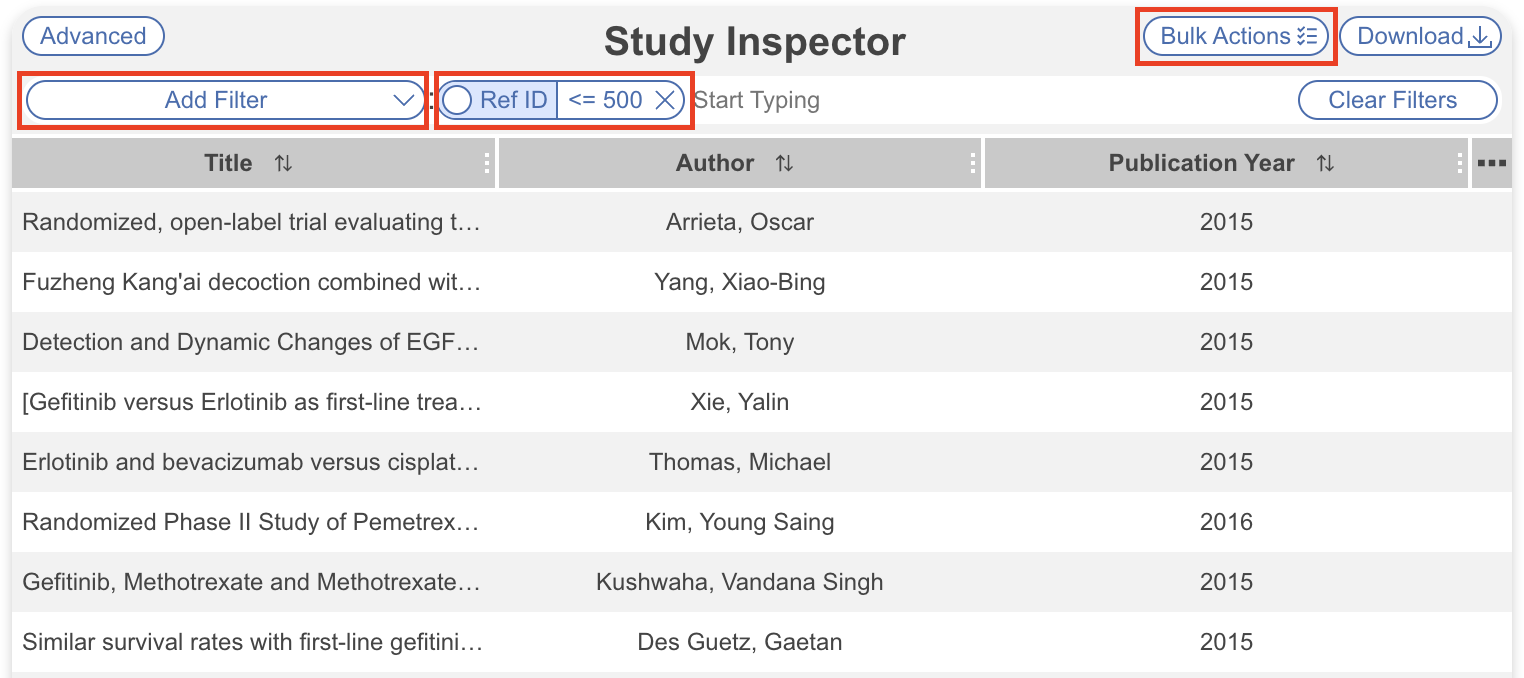
Ref ID Filtering
If you’re using the Ref ID range filters and the total records is less than 500 or generated unexpected totals, that may be because searches have been deleted from your nest and other searches have been uploaded. Since Nested Knowledge does not replace Ref ID for new records added after searches are deleted for audit trail purposes, the Ref IDs of the studies in your nest may be much higher. To see if this is the case, you can add “Ref ID” as a column and view them as a snapshot in the rows. This way you can edit the ranges as appropriate to capture 500 full texts.
Bulk Import Full Texts: Proprietary
Download References
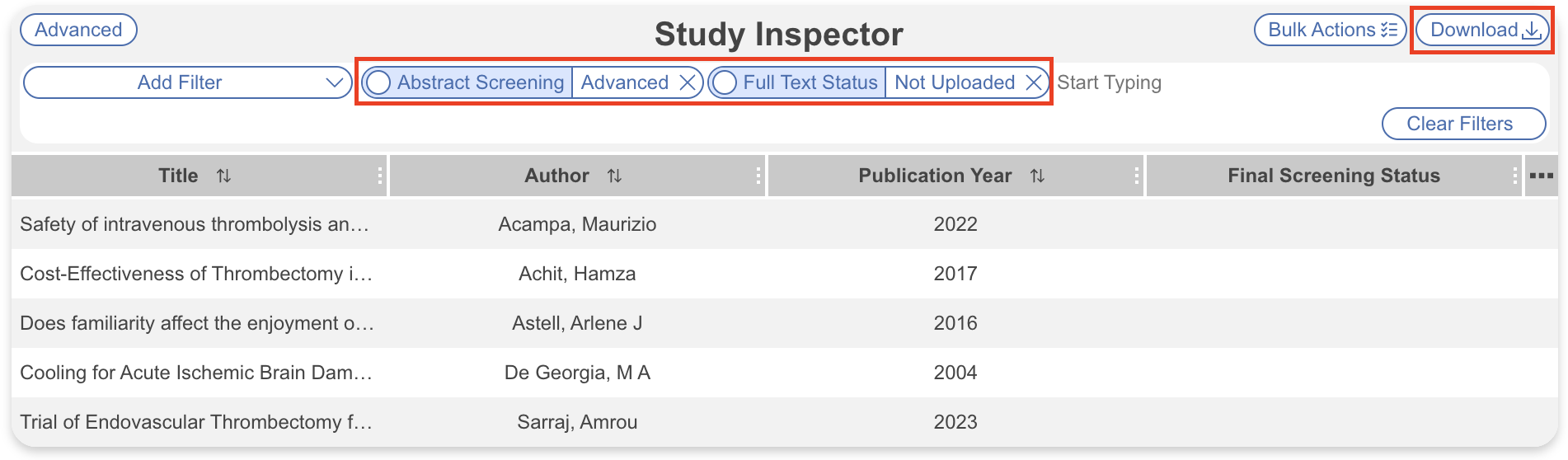
- Navigate to Study Inspector, add the filter to identify remaining studies lacking a full text
- e.g. Abstract Screening → Advanced
- AND Full Text Status → Not Uploaded
- Select “Download” → Studies for a spreadsheet of texts to access
Upload PDFs in bulk
- Once you have the PDFs on your device ready for upload, navigate back to Study Inspector
- Select “Bulk Actions” → Document Import → Upload from Device
- Full Texts will match to existing studies based on Title and DOI (Auto-extracted Data) by default
Now, when “Full Text” is selected during Screening, the pdf will automatically appear.

- You can choose to upload as Full Texts or Supplements
- Auto-extracted data is selected by default, this uses Title and/or DOI to match full texts to studies
- If your pdfs do not contain these details, you may want to match them via Ref ID or External ID.
- Automatic extraction is only available for full text import and will attempt to extract title and DOI for matching to records in your nest. Ref ID matching uses the first number occurring in filenames to match against Ref IDs of records. External ID matching uses the entire filename to match against External IDs of records.
Bulk Import ClinicalTrials
- Navigate to Study Inspector and filter to the applicable studies for ClinicalTrials.gov report attachment
- e.g. Filter to a specific ClinicalTrials.gov search by Add Filter –> Literature Search –> ClinicalTrials.gov: Query
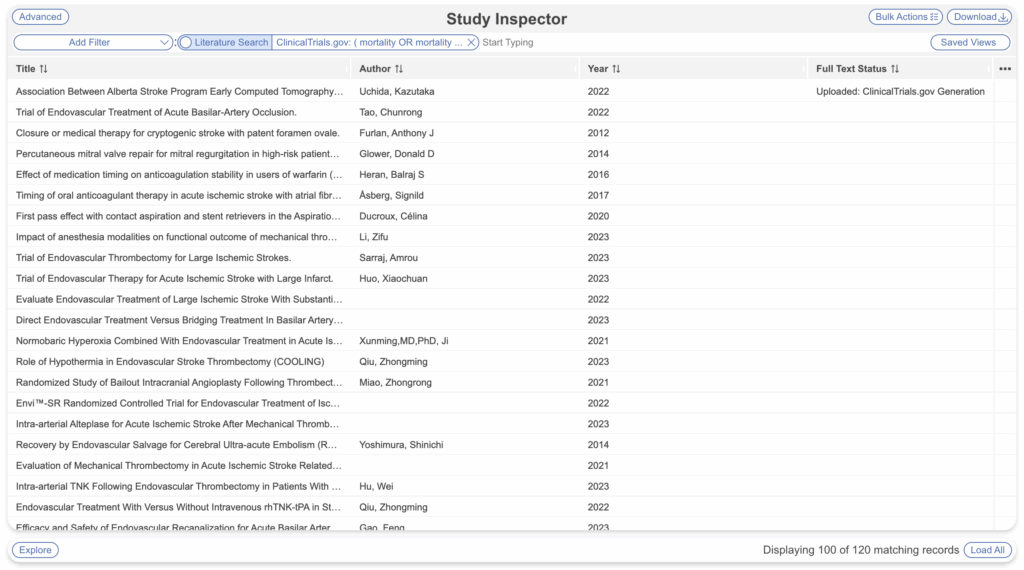
- e.g. Filter to a specific ClinicalTrials.gov search by Add Filter –> Literature Search –> ClinicalTrials.gov: Query
- Then select Bulk Actions –> Document Import –> By: ClinicalTrials.gov –> As Full Texts or Supplements
- Selecting As Full Text will attach the report to the main Full Text page, which will be displayed in Full Text Screening and for onward Extraction if included. If you’d prefer it to be viewed in the supplement tab, select Supplemental Materials.
Troubleshooting Unmatched PDFs #
Open Source PDFs #
Occasionally, unpaywall is unable to retrieve open source pdfs due to captchas in place by journals. In these cases, you’ll notice when you navigate to the Full Text tab the pdf is available but unable to import.
Retrieval Status #
You may also wish to mark the Full Text Retrieval as “Pending” to communicate to other users so duplicative PDF retrieval does not occur.
These can be found later by filtering to Full Text Status: Pending. When a full text is uploaded, this tag is automatically removed.
Proprietary PDFs #
By default, you will receive an email of PDFs that were unsuccessfully matched to records in your nest. This occasionally occurs with mismatches in Auto-extracted data (Title, DOI, Authors). As above you can individually upload full texts. Alternatively you can rename the associated files and use a bulk action but this time utilize the “Ref ID” for matching:
- Filter to Full Text Status: Not Uploaded
- Remember to also include another filter like Abstract Screening: Advanced for those entering the Full Text Screening stage, otherwise it will show you ALL records in your nest that do not have a full text
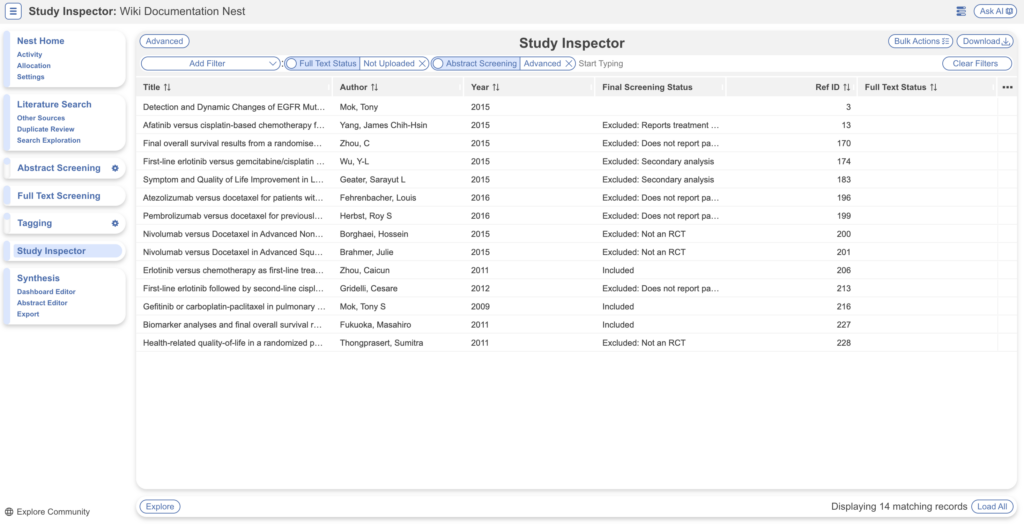
- Remember to also include another filter like Abstract Screening: Advanced for those entering the Full Text Screening stage, otherwise it will show you ALL records in your nest that do not have a full text
- Ensure you toggle on the Ref ID column for ease of viewing alongside record title. Feel free to add any more columns that will make it easier to identify the PDF on your computer in order to rename:
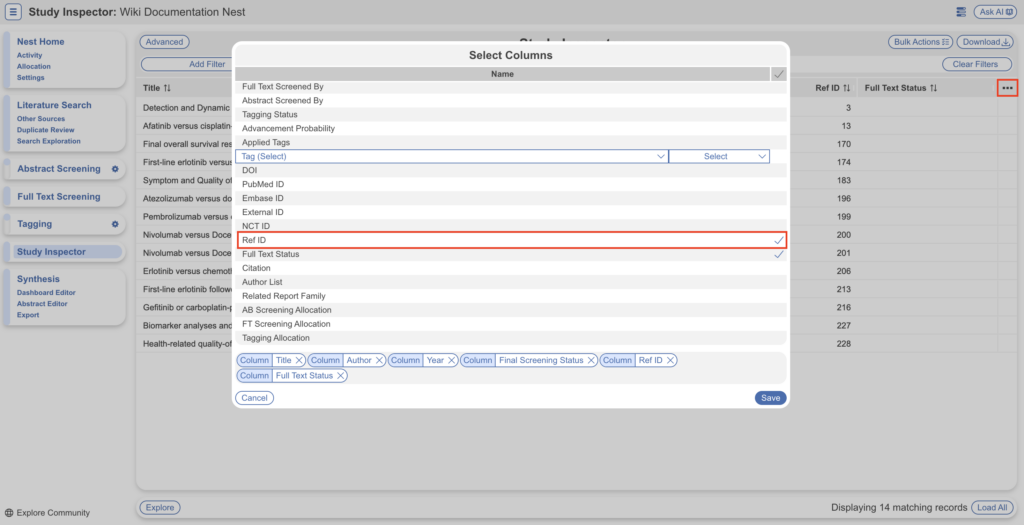
- Use the record’s Ref ID to rename the associated PDFs on your computer. It doesn’t have to be the entire filename, but the first number in the line, if you wish to add other details. For example, for Ref ID = 3, file name can be: “3. Movement Disorder Society Task Force Viewpoint: Huntington’s Disease Diagnostic Categories”
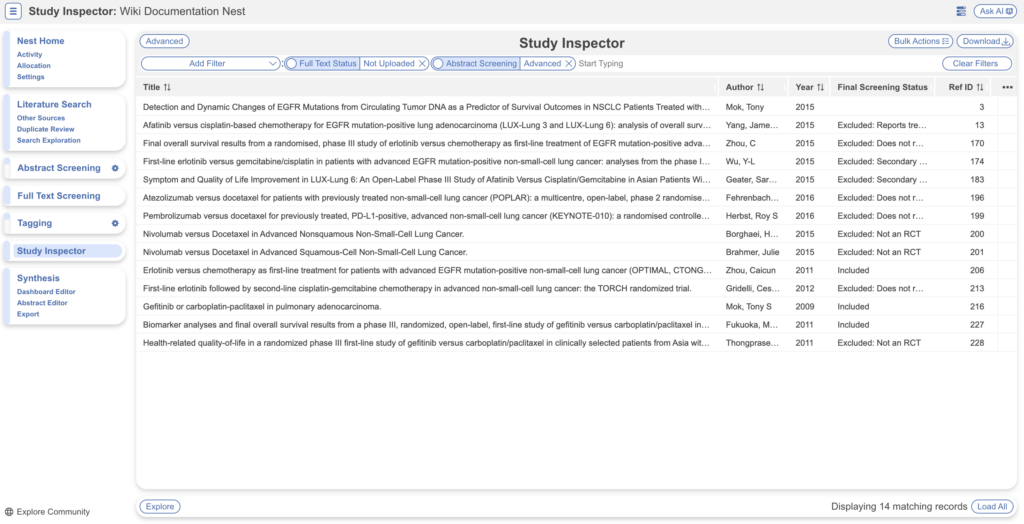
- Once the files are renamed, navigate to Bulk Actions –> Document Import –> Upload from your device and select “Ref ID” for matching: