

Nest Activity allows researchers to stay up to date with the progress of their review, track engagement through Synthesis view counts and, if a Dual Screening mode is in use, view Kappa Statistics/Interrater Reliability/Screening Agreement for reviewers.
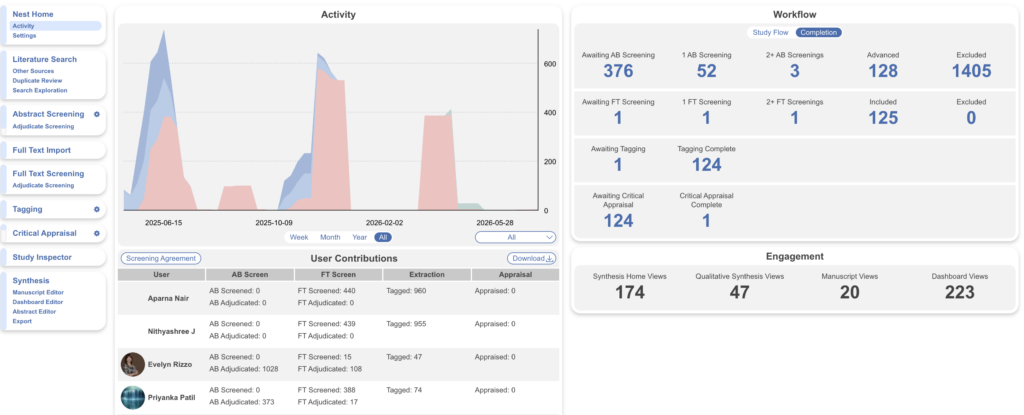
View Activity & Contributions #
View nest activity in a specified time period: the last week, month, year, or all time. You can also select activity in a specific module from the dropdown to view in the graphical format, or actions in the individual modules are displayed in the columns next to user IDs:
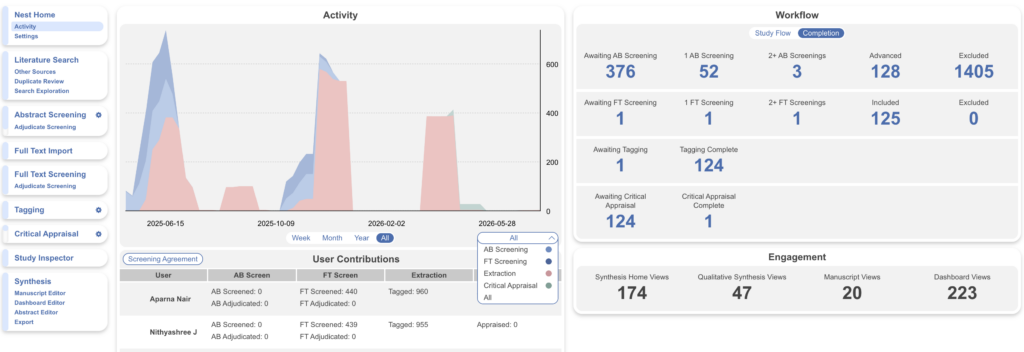
You may notice the numbers listed in some of the columns don’t add up to the number of studies in the nest. This is because Activity tracks the individual steps taken in each module to get a more comprehensive overview of each user’s performance in the nest. For example, “Tagged: 995” doesn’t refer to 995 studies tagged; rather, 995 tags in total were applied by this user across a number of studies.
Download Detailed User Contributions #
The on-screen Contributions table gives you an at-a-glance summary, but for reporting, resourcing, or auditing purposes you often need a granular, dated record of exactly what each user did. To generate one, select the Download button next to the User Contributions header. If you have selected a time period and/or module, the export respects those selections; otherwise, all time and all modules are included by default.
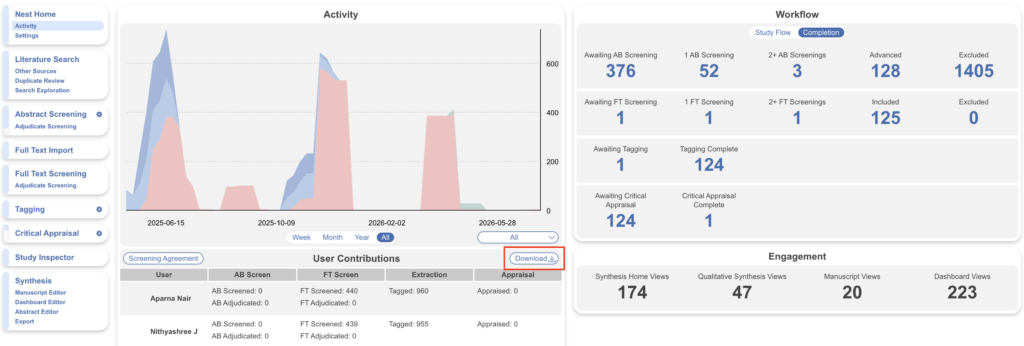
The downloaded spreadsheet (.xlsx) contains two sheets:
- Daily — each row is a user’s activity on a specific date, so you can trace contributions day by day.
- All — each row is a user’s total activity across the whole selected period.
Both sheets break contributions out by workflow step: Active Hours, Reviewer-level and Final Abstract Screening decisions, Reviewer-level and Final Full Text Screening decisions, Questions Answered, Tagging, and Critical Appraisal. As with the on-screen table, these figures count individual actions (e.g. tags applied), not studies.
Note: this download reports user contributions within the current nest only. To report activity across all users or nests in your organization, generate an Organization Activity report instead.
View Nest Workflow #
In the workflow section you can view the overall progress in the nest in a visual format (Study Flow) and in a numerical format (Completion). When hovering over different sections in Study Flow, the associated numbers and percentages are displayed. Clicking on this will direct you to Study Inspector, which will apply the appropriate filter automatically and display all the excluded studies for your review.
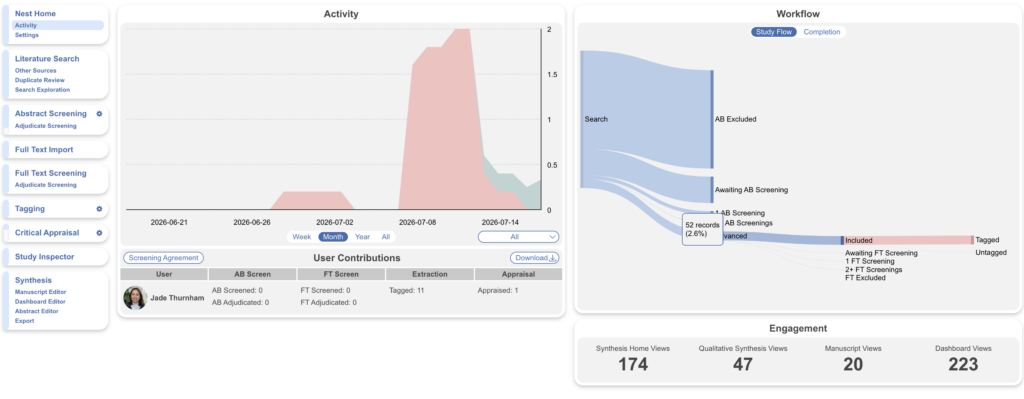
In Completion, the exact numbers for modules completed and those that remain incomplete are displayed all at once. Similar to Study Flow, clicking on these numbers again directs you to Study Inspector to view those particular studies.
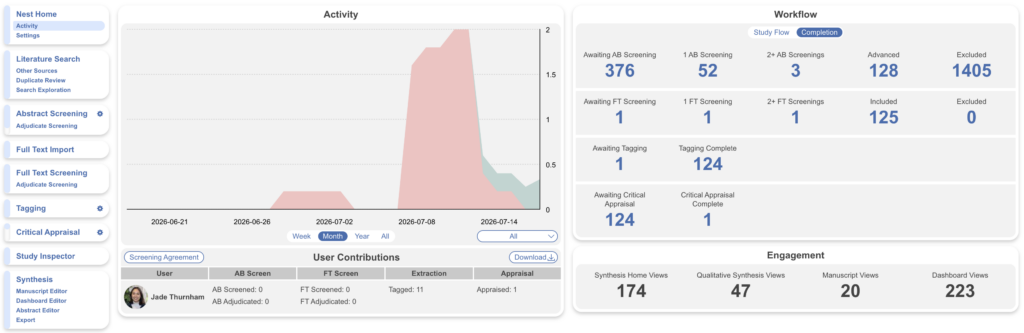
Note: unlike in the Activity box, Workflow displays numbers at the study level, i.e. the number of studies included, excluded, tagged completely, etc.
View Nest Engagement #
Nest outputs can be configured to be public or private in admin settings. If your nest is set to public, these measures approximate engagement with the data and visuals of Synthesis Home, QLS, QNS and Manuscript and/or Dashboard.
Living systematic reviews undergo revisions and updating. For such reviews, you can expect to find an activity pattern with multiple peaks corresponding to the initial round, as well as subsequent updates.
Overall Module Progress #
To get a snippet of overall progress in the Screening, Tagging, MA Extraction and Critical Appraisal modules, you can refer to the progress bars displayed on the main module page in the top right:
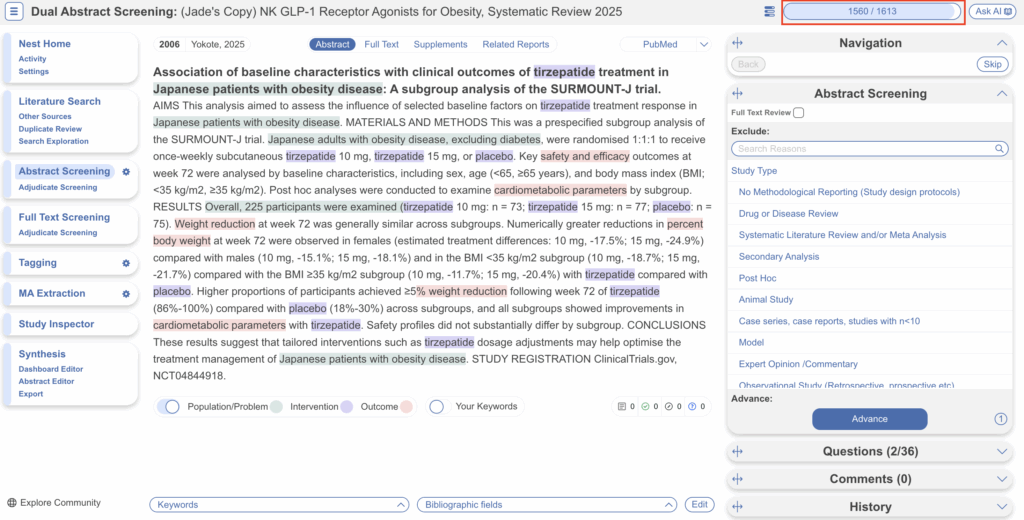
These numbers refer to the number of records fully adjudicated (Screening) and marked “Complete” (Tagging, MA Extraction and Critical Appraisal).
Organization Activity #
Nest Activity, including the detailed contributions download above, is always scoped to a single nest. If you are an Organization Admin and want to review activity across your whole organization — either per user or per nest, within a date range of your choosing — head to the Activity tab on the Organizations page. These organization-level reports summarize screening decisions, tags applied, and metrics extracted at a higher level than the per-day, per-workflow-step detail available here. See Manage Organizations for full instructions.