

Synthesis Chat is an AI assistant built into the Synthesis section of your nest. It answers exploratory questions about your review — what you configured, what you found, and what your extracted data show — and can generate downloadable outputs such as spreadsheets, Word documents, figures, and RIS files directly from your nest’s contents.
Synthesis Chat draws only on the data extracted and configured within your nest. It does not search the web, and it does not draw on outside knowledge. Every substantive claim in an answer is cited back to a specific study or nest element, with the supporting evidence quoted directly beneath the response. Questions are declined when out of scope or extracted evidence and insights in the nest are insufficient to support an answer. This design keeps answers accountable, makes quality assurance straightforward, and is intended to resist hallucination.
This makes Synthesis Chat particularly valuable when a nest is built for wider consumption. If you have constructed a review for a client or an internal stakeholder group, you can share the nest and let them interrogate the evidence base directly. They can ask their own questions and receive answers directly citing the studies you gathered. It is equally useful for manuscript drafting, where built-in commands generate methods sections, results summaries, and structured abstracts from your review’s findings.
Note: Synthesis Chat is currently in beta.
1. Enable Synthesis Chat #
Synthesis Chat is off by default. To turn it on, navigate to Settings in your nest and toggle on Synthesis Chat.

Once enabled, every user with access to the nest’s Synthesis section will see a new Chat tab in the Synthesis menu.
2. Open the Chat #
From your nest, go to Synthesis and select Chat from the menu.
Chat sessions are user-scoped: your questions and the answers you receive are visible only to you. Other users with access to the same nest have their own private chat history, so a client, reviewer, or colleague can explore the evidence independently without seeing or altering anyone else’s line of questioning.
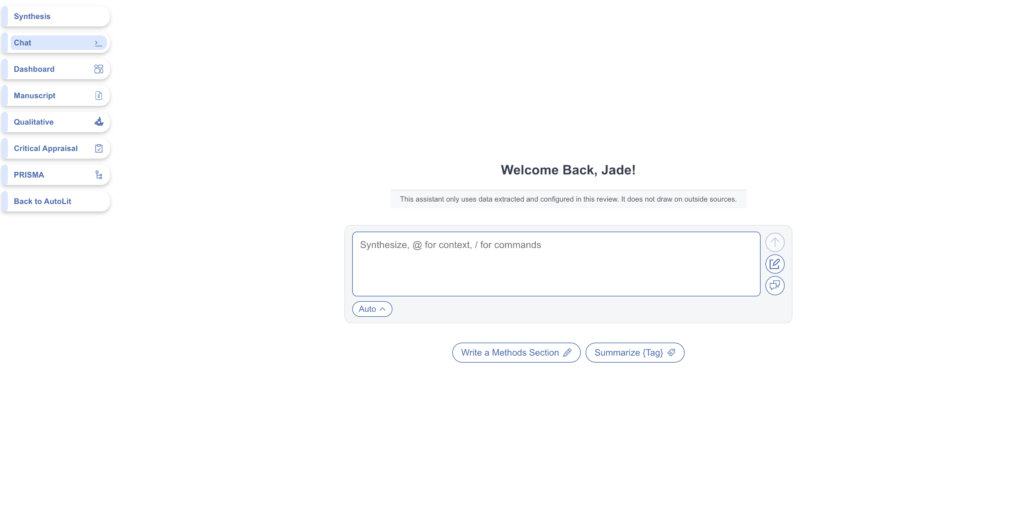
3. Ask a Question #
Type your question into the text box and submit. You can ask about any aspect of the nest’s configuration or gathered data, including:
- Configurations for Screening, Tagging, Critical Appraisal, and your Research Question
- Nest settings, workflow, and methods
- Search results and specific studies, including bibliographic data and full texts
- Screening decisions and the criteria behind them
- Applied tags and their contents
- Critical Appraisal responses
- Insights and Smart Insights
Note: Data from Meta-Analytical Extraction (MAE) are not currently available to Synthesis Chat.
Two shortcuts make questions more precise:
- Type @ to reference a specific tag or study by name, scoping your question to exactly the content you mean.
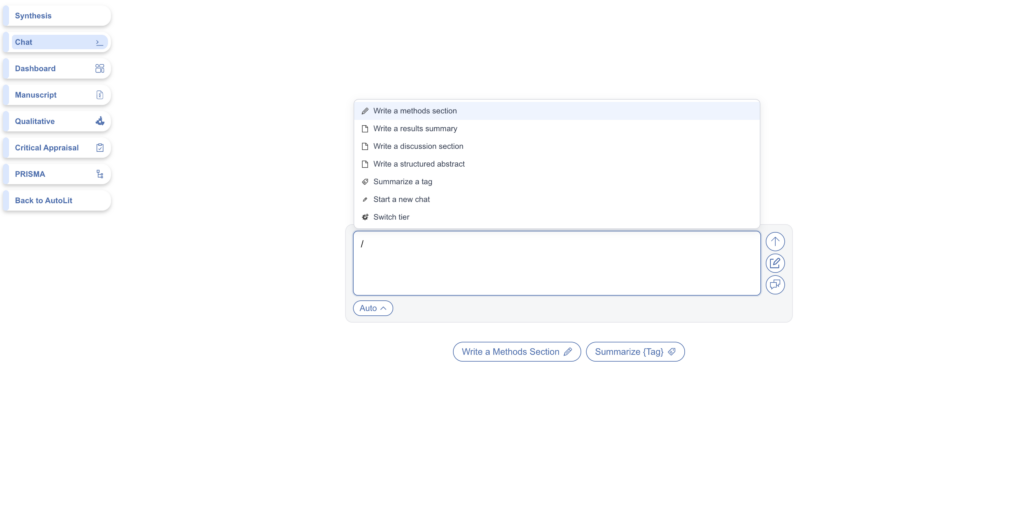
- Type / to open the command menu, which contains pre-built actions: Write a methods section, Write a results summary, Write a discussion section, Write a structured abstract, Summarize a tag, Start a new chat, and Switch thinking tier. These commands are especially useful when drafting sections of a manuscript from your review.
If you are new to the chat, two pre-filled prompts — Write a Methods Section and Summarize {Tag} — appear beneath the text box. Selecting one fills the text box so you can adjust and submit.
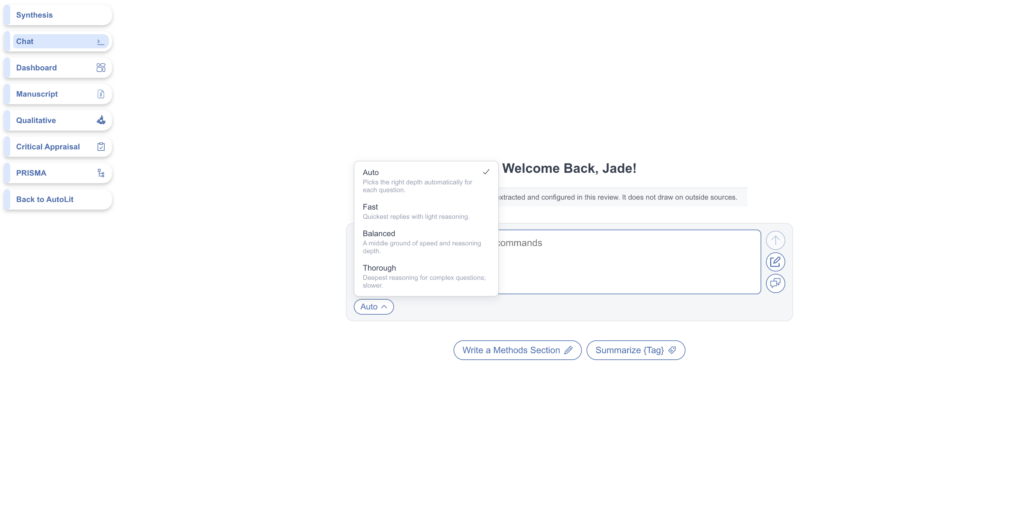
Choose a thinking tier #
The button beneath the text box controls how much reasoning the assistant applies to your question. Auto is the default and our recommendation, it picks the right depth for each question automatically. If you prefer manual control, Fast returns the quickest replies with light reasoning, Balanced offers a middle ground, and Thorough applies the deepest reasoning for complex questions at the cost of speed. You can also change tier mid-conversation with the /Switch tier command; this refers to the assistant’s thinking tier, not your subscription.
4. Review the Answer #
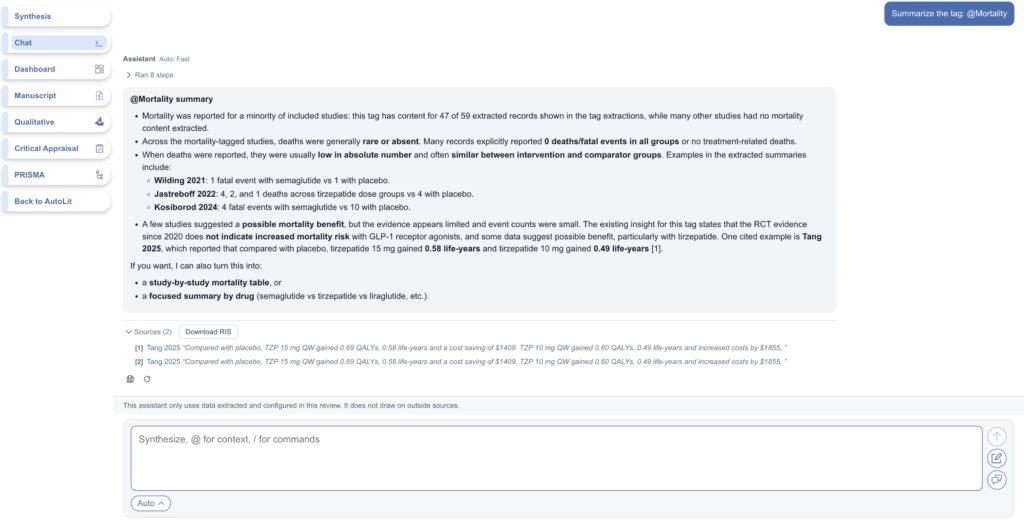
Every response is designed to be checkable. Above the answer, an audit log (e.g. “Ran 8 steps”) records the steps the assistant took to reach it, such as reading an Insight or retrieving tag extractions. Within the answer, sources are cited by number, and each cited study is listed beneath the response with the supporting evidence quoted directly from the study. Cited studies are linked and clickable and you can download the full set of citations as a RIS file using Download RIS.
Each response also includes copy and regenerate icons, and you can edit and resubmit your own messages to refine a question without starting over.
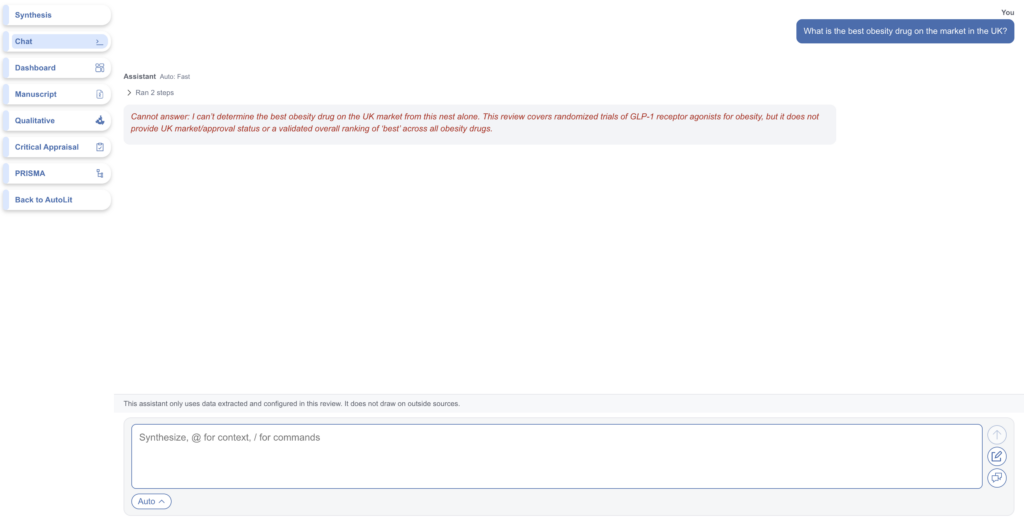
If a question cannot be answered from the data in your nest, Synthesis Chat will decline rather than speculate. This is by design: an answer you cannot trace back to your review is an answer you cannot defend.
5. Generate Spreadsheets, Documents, and Other Artifacts #
Beyond text answers, Synthesis Chat can build downloadable outputs from your nest’s data: Excel spreadsheets (xlsx), Word documents (docx), and figures including line, bar or forest charts. Describe what you want, e.g. a citation listing of all studies reporting a given outcome, or an analytical table such as the co-occurrence of outcomes across studies. A preview of any generated table is shown directly in the chat before you download.
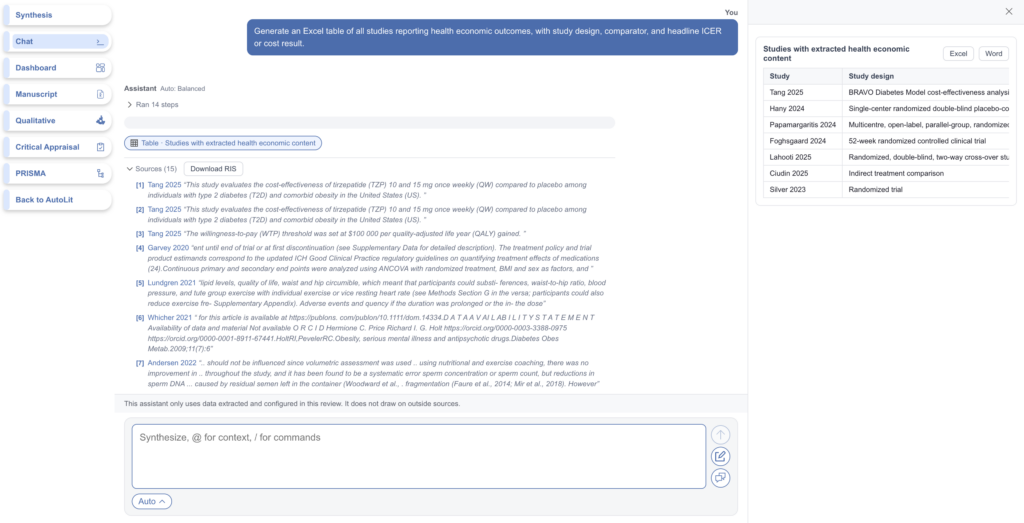
This means Synthesis Chat is not only a question-answering tool but a report-building one.
6. Manage Your Chats #
Your chat history is preserved at the user level, so past conversations remain available whenever you return. Use the new chat and recent chats icons to the right of the text box to start a fresh conversation or revisit an earlier one. Starting a new chat is worthwhile when you change topics, as it keeps each conversation focused on a single line of inquiry.
Example Questions #
The examples below illustrate the range of questions Synthesis Chat can answer in a completed review, from simple retrieval to analytical tables and drafted documents.
HEOR
- “Which studies reported quality-of-life outcomes, and which instruments were used?”
- “Summarize the cost-effectiveness evidence for tirzepatide versus semaglutide, including QALYs and life-years gained.”
- “Generate an Excel table of all studies reporting health economic outcomes, with study design, comparator, and headline ICER or cost result.”
Market Access
- “Which comparators appear most frequently across the included studies, and in which populations?”
- “Build a table showing which outcomes (weight loss, HbA1c, cardiovascular events, mortality) were reported by each included study.” (good co-occurrence/evidence-gap style example)
- “Draft a one-page Word document summarizing the comparative efficacy evidence for semaglutide versus tirzepatide suitable for a value dossier appendix.”
Real World Evidence
- “Which included studies are observational versus RCTs, and what were their sample sizes and follow-up durations?”
- “What discontinuation rates were reported, and how did they differ between trial and real-world settings?”
- “Generate a citation listing (RIS) of all real-world studies reporting adverse events.”
Medical Affairs
- “What does the evidence in this nest say about gastrointestinal adverse events across GLP-1 agonists?”
- “Summarize the @Mortality tag and note whether any study suggested a mortality benefit.”
- “Write a structured abstract of this review.”