

Dual Critical Appraisal (CA) is a quality-controlled extraction process for Critical Appraisal and Risk of Bias systems available in NK to assess quality of evidence within studies. Unlike Single CA, Dual CA is where two users independently complete assessments for each article, and then all data are adjudicated by an Administrator.
The Admin adjudicates any disagreement between Reviewer A and Reviewer B and sets the final determination for each study. For example, if Reviewer A answers a statement with “Yes” but Reviewer B answers “No”, the Adjudicator will then need to choose between those values and identify the most appropriate answer.
Only those with Admin privileges can serve as Adjudicators, but any user can serve as a Reviewer.
This feature is useful to ensure that your team effectively assesses quality of evidence within included studies.
Configure Dual Critical Appraisal #
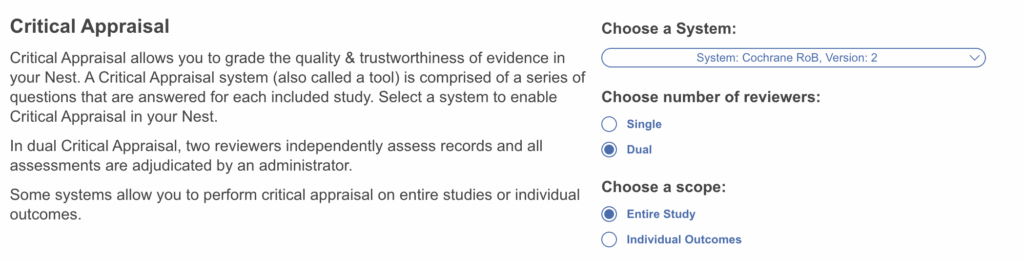
To configure dual CA, go to the Settings page under Nest Home and then scroll to the Critical Appraisal section. Select a system then select Dual. Note: switching between Single and Dual modes only carries over adjudicated decisions but results in no loss of data so you may switch between freely.
Reviewer Steps #
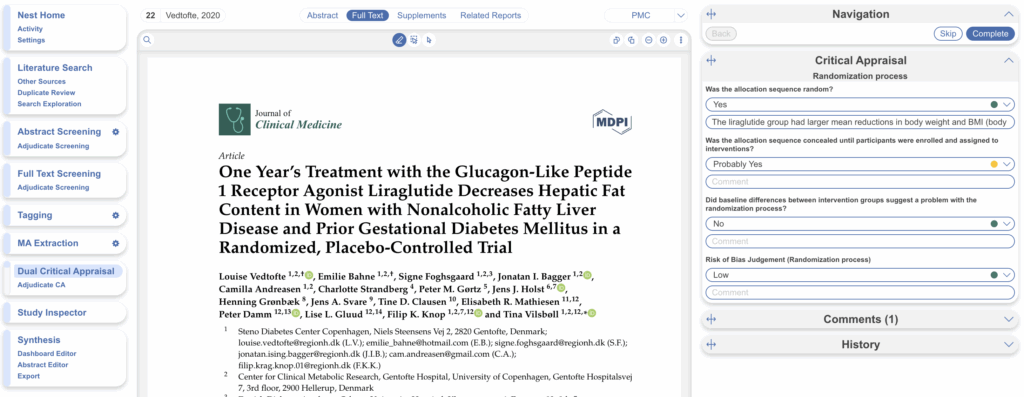
Now “Dual Critical Appraisal” will be displayed as the module title in the left-hand menu. Select this to start assessing studies. You’ll see the full text in the centre and the chosen system’s questions on the right-hand side. Select answers from the drop-down and add a comment if you wish. Answers are automatically saved. Not all questions must be answered if you wish to leave some.
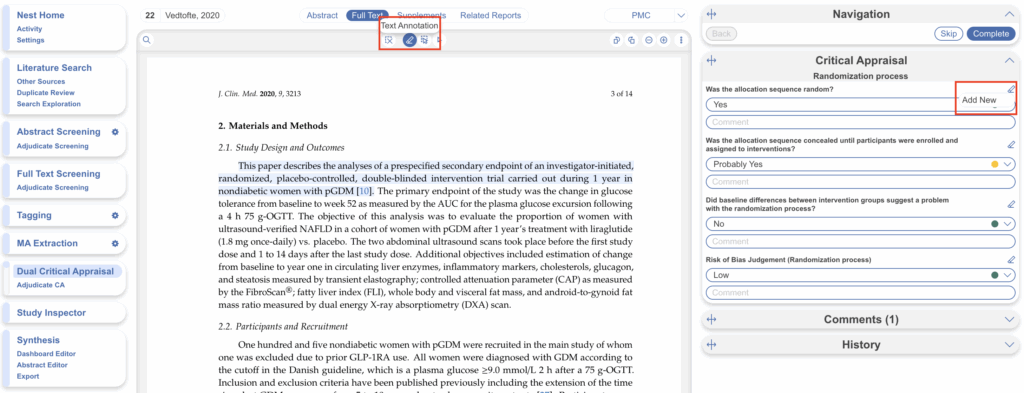
By default, the “Text Annotation” icon is selected, above the full text, which allows you to select text within the pdf and attach this as an annotation to a specific question/statement. To do this, scroll to the area of text and highlight. You’ll notice now in the question set, the icon appears next to all questions. Select the one you wish to attach the annotation to and click “Add New”.
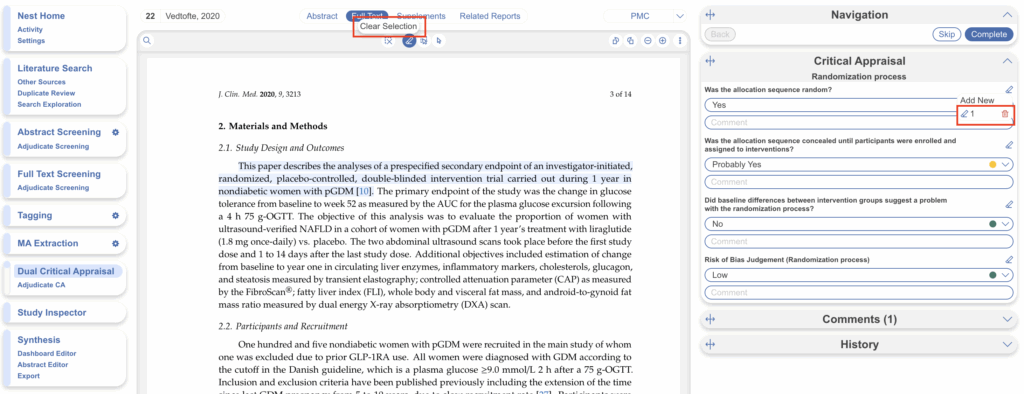
This annotation will be labelled “1”. Then, select the clear annotation icon and move onto the next question to avoid unintentionally adding the annotation to other questions (unless desired). You can return to this annotation anytime by selecting the icon next to the statement and clicking “1”. Your answer, comment and annotation will all be available to adjudicators (but not other reviewers of course). Select “Complete” once you have finished.
Adjudicator Steps #
Once a study has 2 complete assessments attached, it will automatically be placed into the adjudicator queue for review. As an admin, you can view this on the “Adjudicate CA” page. Here you can view the full text in the centre, and the 2 sets of decisions for each question on the right-hand side. Unless you have turned on Blinding in settings, reviewer names will be displayed.
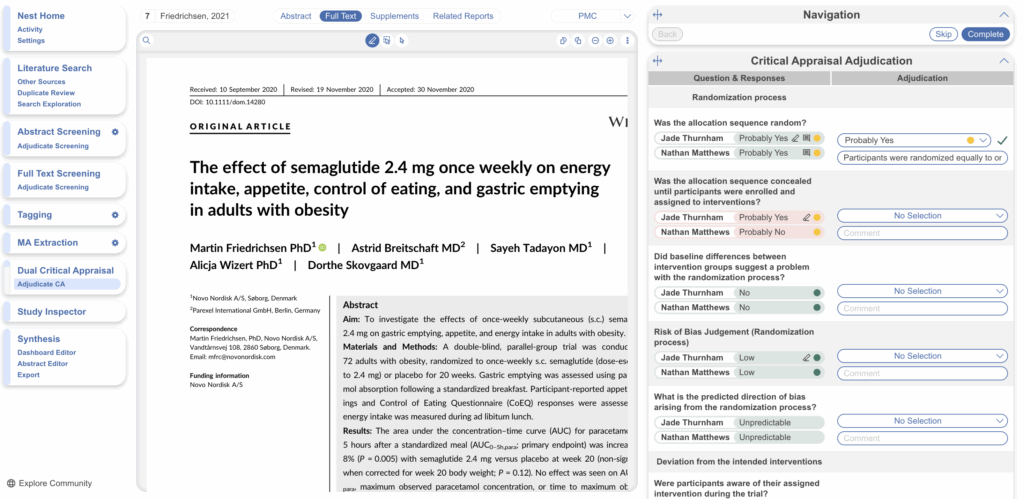
Green answers indicate reviewers are in agreement, red answers indicate reviewers disagree. As an adjudicator, you can select one of the answers and it will populate the adjudicated answer space with the same answer as well as any associated comment. If a reviewer answer has an associated text annotation or comment, icons will be displayed allowing you to click or hover to view. If you’d like to add a text annotation, follow the same steps as above with a reviewer.
Once you select an answer a green tick will appear indicating the question has been adjudicated. This can be edited or undone anytime, any actions applied are automatically saved. Once adjudicated, select “Complete”.
Critical Appraisal Visuals #
By completing Critical Appraisal, you automatically generate Critical Appraisal visuals: Domain Distribution and Stoplight diagrams on Synthesis. Additionally, you will be able to export all data as a spreadsheet from Inspector.
Currently, only adjudicated CA decisions are exported to spreadsheet.