

Comments enable you to communicate with your whole team, mark individual studies for review, and “@” specific team members to send them alerts.
The Nest Comments system allows all users of the nest to communicate within the nest instead of countless e-mails back and forth.
Navigate to “Nest Home” #
Once at the Nest Home, you will see the Comments section on the right side.
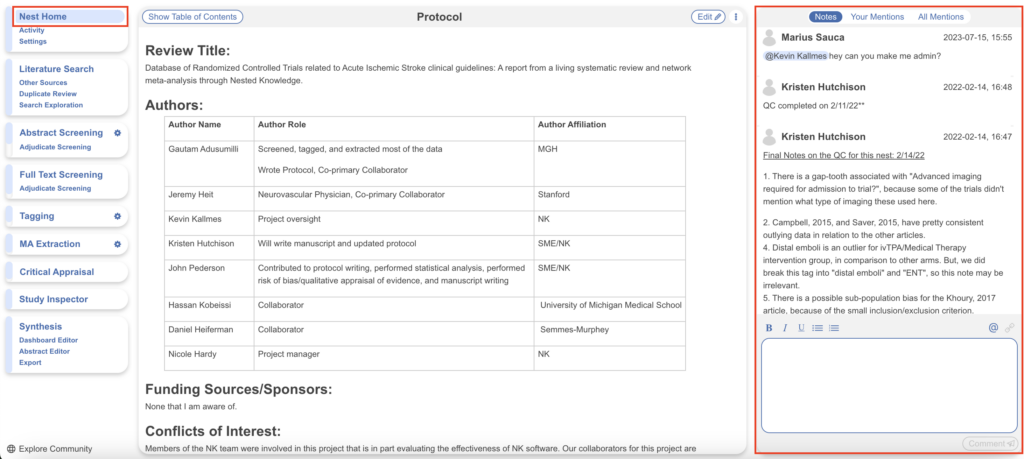
Nest-level Comments #
Nest-level Comments refer to comments made about the nest in general. They are available in the Nest Home. Here you can also view comments that other collaborators have tagged you in via “Your Mentions” or all comments that have tagged a collaborator via “All Mentions.”
Study-level Comments #
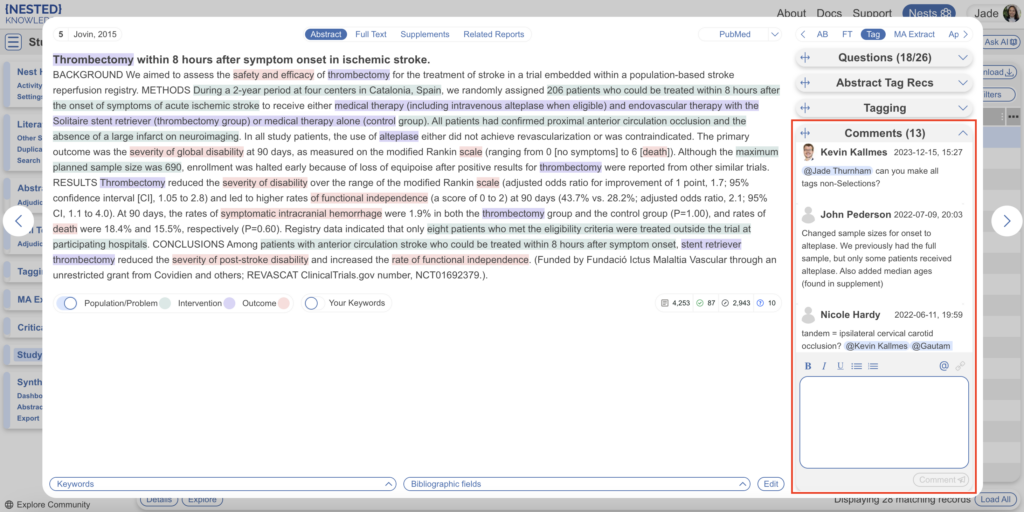
Study-level Comments are attached to specific studies in a nest. This provides two advantages in terms of specific tracking:
- The comment will ‘follow’ that study and be visible to anyone viewing that study in the future;
- If you @ a Collaborator (see below), they can access that study and see the comment in context in one click!
To make a Study-level comment, navigate to the study of interest (in any mode, including Inspector), and add your comment under the Comments panel in the bottom left.
Comment @ a Collaborator #
How to @ a Collaborator #
Click the blue @ button above the comment section and select the collaborator you want to mention.
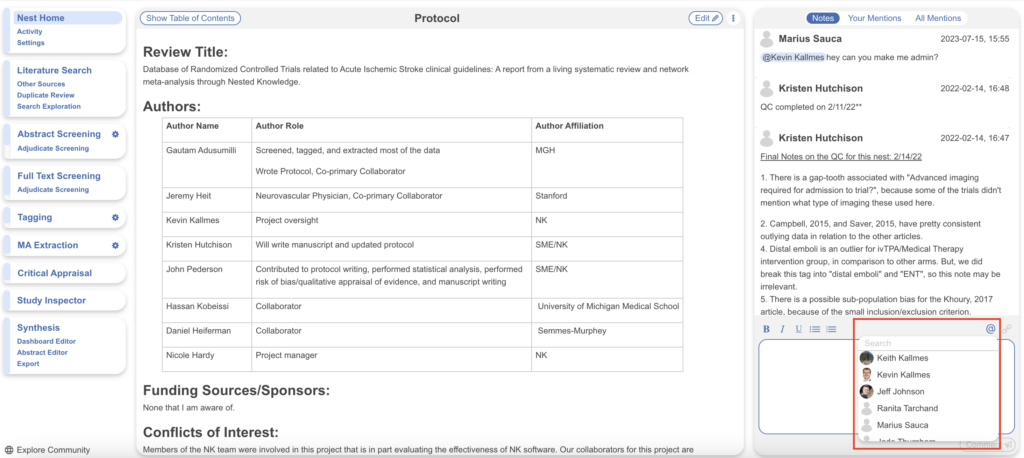
If you @ a Collaborator, it will send them an email and also mark the nest with a red icon on Nests Homepage so they know to view the Comment.
Additionally, if you do not @ the Collaborator, they will not be able to see Nest-level comments that may be relevant to them or access Study-level comments except by accidentally happening upon your earlier comments.
Resolving comments #
Over a long review the Comments panel fills up, and it gets hard to tell which notes still need someone’s attention and which have been dealt with. Resolvable comments let a comment carry a status — unresolved or resolved — so the open items stay visible and the finished ones drop out of the way.
When you write a comment, at either the nest or study level, you can mark it resolvable using the check-mark icon. One case is handled for you: if your comment mentions (“@”) a collaborator, it’s marked resolvable automatically, on the assumption that a mention is asking someone to do or confirm something. You can turn that off if it isn’t.
Once a comment is resolvable, anyone in the nest can flip it between unresolved and resolved at any time — resolving isn’t restricted to the author or to admins.
Comments created before this release are all marked non-resolvable, so nothing you wrote previously suddenly appears as an open task.
Finding what’s still open. Two places surface unresolved comments. On Nest Home, the comment list floats unresolved comments to the top, so the things still needing attention are the first you see. In Study Inspector, the Comment Resolution Status filter returns any study with at least one comment matching the status you choose — which lets you pull up, for example, every study that still has an unresolved comment attached.